9 R Interfaces
“You should try things; R won’t break.”
- Duncan Murdoch, from R-help (May 2016)
9.1 Introduction
This chapter explores the ever-growing capacity of R to interact with non-native software. Programmatic interfacing is a complex topic, with many possible variations. Thus, to provide sufficient background, a number of other concepts are considered first. These include a discussion of source and machine code, an introduction to compilers, a comparison of interpreted and compiled programming approaches, and a overview of system shells (Sections 9.1.1-9.2).
The interfacing capabilities of R are greatly increased if one gains some proficiency, or at least familiarity, with other programming languages. For instance, we have already considered the use of Perl regex calls for managing character strings in Ch 4 (Section 4.3), and the R Markdown document processing workflow is largely a chain of Markup language conversions (Section 2.10.2.2).
This chapter introduces shell commands, along with R bindings131 to the languages Fortran, C, C++, SQL, and Python132. Brief backgrounds to those languages are provided here. These, however, should not be considered thorough introductions, given that: 1) I am not a computer language polyglot, and 2) my focus is to demonstrate how other languages can be interfaced with R, and not the languages themselves. Appropriate references to language resources are provided throughout the chapter133. Appendix A contains a brief summary of all computer languages considered in this book.
To account for the frequent use of different computer languages in this chapter, the following coloring conventions for chunk inputs will be used hereafter in this book134:
# R code9.1.1 Using RStudio as an IDE for Other Languages
RStudio can serve as a scripting IDE for many languages other than R. These currently include: C, C++, CSS, JavaScript, Python, SQL, and Stan. To enable a particular IDE, one would go to File > New File in RStudio, and choose the desired format.
9.1.1.1 Interfacing R Using knitr Chunks
Language interfacing with R can be greatly facilitated with code chunks inserted in R Markdown or Sweave documents. This is because many languages other than R are supported by knitr and Sweave. Remarkably, this allows coding and execution of scripts from multiple languages within a single markup document.
Recall (Section 2.10.2.2.2) that the language engine for a particular knitr chunk is given by the first argument in the chunk options. For instance, in an R Markdown .rmd document ```{r } ``` initiates a conventional R code chunk, whereas ```{python }``` would begin a Python code chunk. In a Sweave .rnw document, one would specify a Python chunk using the header: <<engine = 'python'>>=. Here are the current knitr language engines.
names(knitr::knit_engines$get()) [1] "awk" "bash" "coffee" "gawk" "groovy"
[6] "haskell" "lein" "mysql" "node" "octave"
[11] "perl" "php" "psql" "Rscript" "ruby"
[16] "sas" "scala" "sed" "sh" "stata"
[21] "zsh" "asis" "asy" "block" "block2"
[26] "bslib" "c" "cat" "cc" "comment"
[31] "css" "ditaa" "dot" "embed" "eviews"
[36] "exec" "fortran" "fortran95" "go" "highlight"
[41] "js" "julia" "python" "R" "Rcpp"
[46] "sass" "scss" "sql" "stan" "targets"
[51] "tikz" "verbatim" "theorem" "lemma" "corollary"
[56] "proposition" "conjecture" "definition" "example" "exercise"
[61] "hypothesis" "proof" "remark" "solution" "glue"
[66] "glue_sql" "gluesql" Items 52-64 are not explicit computer languages, but allow specification of particular R Markdown document blocks, with appropriate labels and numbering.
9.1.2 Source Code, Machine Code, and Compilers
Source code refers to human-readable instructions under the framework of some programming language. For instance, the script
[1] 3.3333is an example of R source code, along with its printed evaluation result.
A computer only fundamentally understands machine code. Conventionally, machine code is a binary {0, 1} representation of a source code procedure (Section 12.2). The machine code for the R script mean(c(1, 3, 6)) is not show here. However, the binary translation of \(3.33\bar{3}\) (see Ch 12), is:
[1] 11.0101010101Source code must be converted into machine code instructions prior to execution by a computer.
Special programs called compilers are used to convert source code programs into machine code, over a series of steps. Conventionally, these include:
- Pre-processing, including the insertion of additional external code (e.g. macros and header files), based on directives in the source code.
- Compilation, which translates pre-processing output into a low-level Assembly language program that provides human-readable instructions for a computer’s Central Processing Unit (CPU). The program (and subsequent products) will be specific to a particular CPU architecture, e.g., x86-64 or ARM64 (Section 12.1.2).
-
Assembly, which often translates compilation output into a machine code file with a
.oextension, called a relocatable object. - Linking, in which additional processes required by the program (e.g., external functions) are accessed and provided by the compiler.
The result of compilation is called an executable file, or simply an executable (Figure 9.1). Executables can be called from within R (or elsewhere) to run independently, or to enhance other programs and procedures.
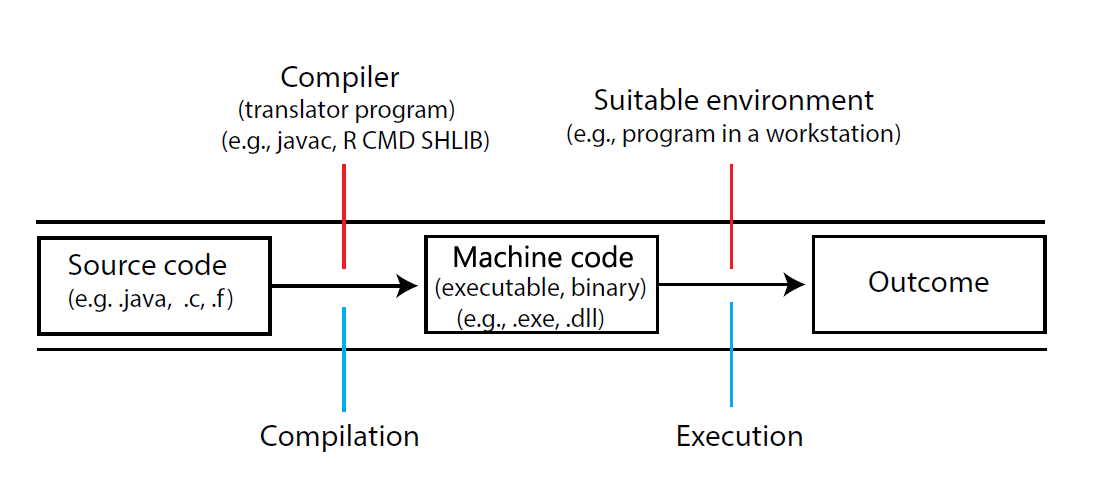
FIGURE 9.1: Creating an executable file in a compiled language.
9.1.3 Interpreted and Compiled Languages
R, along with many other useful languages (e.g., Python, JavaScript, Ruby), is generally implemented using an interpreter program that (appears to135) directly execute source code without the need for compilation. R interpreters translate source code into instructions for pre-compiled processes, primarily written in the language C. Because line-by-line interpretation must precede machine code implementation, interpreted procedures tend to be slower than fully compiled procedures.
Non-interpreted (compiled) languages (for instance, Fortran, C, C++, C#, and Java) are generally implemented following their compilation into executables136 (Figure 9.1). Compilers are generally specific to an underlying source code language. For instance, the ILCPU compiler is intended for C# code, and the clisp compiler is intended for Lisp.
The following compilation tools are very important to R-users. The last two are particularly important for Windows users.
-
The GNU Compiler Collection (GCC) contains a large number of open source compilers, including
gcc(for C),g++(for C++), andgfortran(for Fortran).
- MinGW (“Minimalist GNU for Windows”) is a free open source development environment for creating Windows applications. It includes a GCC port, along with other compilation tools specifically for Windows.
- RTools is a Windows toolchain, intended primarily for building packages (and R) from source code. As of version 4.5, Rtools includes Msys2 –a collection of tools and libraries for building, installing and running Windows software, the GCC 14/MinGW-w64 compiler toolchain for Windows, and QPDF –a command line tool and C++ library that performs content-preserving transformations on PDF files.
9.2 Shells
A shell is a program that allows direct access –generally through a command line interface– to a computer’s operating system. The name arose, in part, because a shell provides a thin covering for an operating system that interacts with the outside world (The Jargon File 2026, “Shell”).
I frequently use shells in this chapter for source code compilation (e.g., Sections 9.3.1, 9.3.2), and to call/interface other programs (e.g., Sections 9.5.2, 9.5.3, 9.6). Shells, however, can be used for many other purposes137. This section briefly introduces and explores system shells and their applications.
The Windows OS currently has two built-in shells138. The Command shell (also know as cmd.exe or cmd), was introduced in 1993 and maintains strong similarities to the venerable MS-DOS language framework (see Wikipedia (2025k)). PowerShell, introduced in 2006, is back-compatible to varying degrees with many cmd commands. PowerShell also has many advanced features, including underlying OOP structures.
Processes for Windows shells differ in many respects from the POSIX (Portable Operating System Interface) compliant shells used by Unix-like systems. The most widely used POSIX shell, BASH139, allows straightforward execution and modification of Unix operations that may be difficult to translate to Windows OS140. The Windows Subsystem for Linux (WSL) allows one to run the Linux kernel (and BASH processes) directly on a Windows machine. I strongly recommend WSL for advanced shell procedures, including the generation of shell programs (Section 9.2.8 below), compilation of scripts using makefiles (e.g., Section 11.6), Windows management of R-driven apps in servers (Sections 11.5.7, 12.10.2), and multi-core processing with forks (Section 12.11.1.2). For Windows OS beginning with version 10 build 19041, one can install WSL from cmd or PowerShell using: wsl --install. Running
installs the Ubuntu-26.04 distribution for Linux (see Section 12.1.1). The -d flag means “distribution”.
Shell commands can be run directly from knitr chunks (see Section 9.1.1.1). For instance, BASH can be initiated (if available) using ```{bash }```, and the simpler Bourne POSIX shell can be initiated using ```{sh }```. The R function shell() can be used to run Windows shells directly from the R command line. The function system() allows R to access both Windows and Unix-like shells.
Most shells (including PowerShell, cmd, and BASH) allow auto-completion of commands using the Tab key. This is particularly convenient for completion of long file names. Further, like R-term, these shells allow scrolling through earlier commands using the \(\uparrow\) and \(\downarrow\) keys. To interrupt a system shell process, one can generally use Ctrl + C .
CAUTION!
Shells are powerful tools, and damage can be done to your computer through their misapplication. This is particularity true when running destructive commands, e.g., del, rmdir, format as an Administrator.
9.2.1 Simple Shell Procedures
Table 9.1 lists some simple shell commands, including a number that work the same way in both Windows and Unix-like shells. Additional shell procedures for managing servers and running internet protocols are considered in Sections 11.5.7.2 and 12.10.1.
| Operation | Windows | Unix-like/BASH |
|---|---|---|
| Change directory |
cd <path> go to <path>cd .. “up” one directorycd ~ (PS) or cd %HOMEPATH% (cmd) home directory cd \ root directory |
cd <path> go to <path>cd .. “up” one directorycd - previous directorycd ~ home directorycd / root directory |
| Root directive |
sudo (PS) |
sudo-s run specified shell |
| Print working directory |
pwd (PS) or cd (cmd) |
pwd |
| Clear shell | cls |
clear |
| List files in directory |
dir (cmd)/B use bare format/O:D sort by timestamp /O:S sort by file size /O:E sort by file extension |
ls-t sort by timestamp-S sort by file size-X sort by file extension |
| Show directory nesting | tree |
tree |
Print <file>
|
type <file> (cmd) or cat <file> (PS) |
cat <file>-n number all output lines |
| Display text | echo |
echo |
Copy <file>
|
copy <file> <destination> |
cp <file> <destination> |
Move <file>
|
move <file> <destination> |
mv <file> <destination> |
| Print system details |
systeminfo (cmd)/s IP addressGet-ComputerInfo (PS) |
uname-a all details-p processor type-o operating system |
Find <string>
|
findstr <string> (cmd)/I ignore case/V non-matching linessls <string> (PS)-CaseSensitive ignore case-NotMatch non-matching lines |
grep <string> <path> -i ignore case -v non-matching lines -c print only output line counts -l print only filename matches -E use extended regex -P use Perl-compatible regex-F interpret pattern as “fixed” (not regex) |
| Sort and print |
sort /unique (cmd) return unique values-Unique (PS) return unique values |
sort-u return unique values |
| Help | help <command> |
help <command> or <command> --help
|
| Exit shell | exit |
exit |
Some additional details may be useful for comprehending Table 9.1. The root directory of a computer (obtained using cd \ in PowerShell and cmd, and cd / in BASH) is the hierarchical starting point for files. That is, the root is the starting point of a computer’s directory tree. The root directory is managed by the so-called “superuser”, and can be used to implement system-wide changes. Commands at the root-level will often require sudo (superuser do) privileges, initiated with a password141. The home directory (obtained using cd ~ or cd %HOMEPATH% (cmd)) is located within the root directory, and comprises a personal directory system starting point142. Users will generally have full read/write access within their home directory, although a non-root sudo password may be required for some operations. When switching between BASH and Windows shells, it is important to remember that while Windows nests directories using backslashes, for instance Dir1\Dir2\Dir3, Unix-like shells (and systems developed under Unix, like R) use forward slashes: Dir1/Dir2/Dir3.
User-specified options available for cmd procedures will generally be preceded with a forward slash, /, whereas user-specified options in PowerShell and BASH will be preceded with a dash,- (Table 9.1). For instance, the BASH ls procedure has an option -1 that causes one file to be printed per line, and an option -S that sorts by file and/or directory size. To run ls with those options one could use: ls -1S. Although some back-compatibility exists for cmd commands in PowerShell, option calls for those commands often differ dramatically. For example, dir /B prints the contents of the current working directory in cmd, while one would use dir -Name in PowerShell. One can run cmd directly from PowerShell using cmd /c. Thus, one could use cmd /c dir /B in PowerShell.
Note that methods for obtaining help differ by shell. To get help for a cmd or PowerShell process named <command> one could use: help <command>. BASH help can be obtained two ways. For a BASH built-in process named <command> one would use: help <command>. BASH internal commands include cd and pwd. However, for an external command or executable (e.g., grep, sort) one would use <command> --help. A formatted BASH manual for external processes can often be obtained using the format: man <command>.
The use of several metacharacters is consistent across many shell languages (Table 9.2). Note that the command .\script can be used in PowerShell and BASH to run an executable named script within the current working directory. This allows one to run executables that are not on defined Environmental Paths. If a program does exist on a path, then one can generally run it from a shell by simply typing program or, if appropriate, program.exe.
| Operation | Windows | Unix-like/Bash |
|---|---|---|
| Expand to match | * |
* |
| Redirect output | > |
> |
| Append output | >> |
>> |
| Redirect input | < |
< |
Call variable name
|
\%name\% (cmd) or \$name (PS) |
\$name |
| Pipe | \(\mid\) | \(\mid\) |
| Escape |
^ (cmd), \ (PS) |
\ |
Run script in current dir |
script (cmd), ./script (PS) |
./script |
Additional guidance for Windows shells can be found at the learn.microsoft.com website. Additional guidance for BASH can be found here.
Example 9.1 \(\text{}\)
To navigate to the root directory of my computer, I could type cd \ in Windows cmd or PowerShell, or type cd / in BASH (Table 9.1). Here I use cmd:
C:\>PowerShell and cmd use the same command line prompt as R: >. However, note that the current directory is also included with the prompt. This format (also used by other shells) occurs because the current directory will be a shell’s working directory.
\(\blacksquare\)
In Example 9.1 (and henceforth), I show shell prompts preceding the actual shell code to: 1) demonstrate how the shell actually looks, 2) clarify which shell program I am using, and 3) show which directory a command is being run from. One should not, however, include prompts in code. For example, one should run cd \, not C:\Windows\System32> cd \.
Example 9.2 \(\text{}\)
Here I access an Ubuntu version of Linux, implemented in WSL, from a Windows shell:
Welcome to Ubuntu 26.04.1 LTS (GNU/Linux 6.6.87.2-microsoft-standard-WSL2 x86_64)
/mnt/c/Users/ahoken$
The BASH command line prompt ends with $, although this can change with user permissions. The hierarchy: /mnt/c/Users/ is a conventional path for Linux in WSL. In particular, /mnt is a Linux location designation for “mounting” to other file systems or devices. The directory /c is the WSL mount point for the Windows C: drive.
Here I navigate to the Linux root directory:
/$To obtain continuous shell superuser directory privileges for BASH session, I can use:
This requires a password, established when installing WSL.
/mnt/c/Users/ahoken#Because I have root access, the prompt now ends with #.
\(\blacksquare\)
Example 9.3 \(\text{}\)
To navigate to my home directory, I could use cd %HOMEPATH% in cmd, or use cd ~ in BASH or PowerShell. Here I use cmd:
C:\Users\ahoken>Here I use PowerShell:
PS C:\Users\ahoken>Here I use BASH:
~$Here I print my (current) working directory in BASH:
/home/ahokenNote that this is not the same location as /mnt/c/Users/ahoken.
\(\blacksquare\)
Directories in shells can be accessed using absolute paths or shortcut relative paths. One can always navigate to a particular location by specifying its entire absolute path, starting at the root. For instance, if the full path to my desired location from the BASH root is: /mnt/c/Users, I could navigate to it using the absolute path: cd /mnt/c/Users. Remember, the first forward slash indicates I am starting from the root. On the other hand, if I was already in the directory c, I could navigate to Users using the relative path: cd Users. If Dir1 was at the top-level within my home directory, I could navigate to it in BASH using cd ~/Dir1.
9.2.2 Plain Text Searches and Management
It is often straightforward to examine and manage files, particularly plain text files, from a shell. This can be facilitated through the use of wildcards that are generally universal across shells. The most useful of these is the asterisk, *, which means: “expand to match the names of all files and directories in the current directory” (Table 9.2). Thus, in a shell environment, * is similar to the regex command, .*.
Example 9.4 \(\text{}\)
What if I wanted to list all the R-Markdown files (those with an .rmd file extension) in the home directory for this book? I could navigate to the correct directory in cmd, and type dir /b *.rmd:
C:\> cd "C:\Users\ahoken\Documents\GitHub\Amalgam"
C:\Users\ahoken\Documents\GitHub\Amalgam> dir /b *.Rmd
01-Ch1.Rmd
02-Ch2.Rmd
03-Ch3.Rmd
04-Ch4.Rmd
05-Ch5.Rmd
06-Ch6.Rmd
07-Ch7.Rmd
08-Ch8.Rmd
09-Ch9.Rmd
10-Ch10.Rmd
11-Ch11.Rmd
12-Ch12.Rmd
13-AppendixA.Rmd
14-AppendixB.Rmd
15-AppendixC.Rmd
16-references.Rmd
Amalgam-of-R.Rmd
index.RmdRecall (Table 9.1) that dir lists working directory components in Windows OS under cmd143. The /b option in dir means: “use a bare format (no heading information or summary)”. The metacharacter * serves as a wildcard (Table 9.2). Specifically, *.rmd indicates that only files in the working directory with a .rmd extension (with an identifying string ending with .rmd) should be listed. I could get the same result in BASH using:
\(\blacksquare\)
The * shell wildcard can be used in more sophisticated ways. For instance, to list all text files within all directories starting with D, I could use: ls D*\*.txt in PowerShell or ls D*/*.txt in BASH.
Example 9.5 \(\text{}\)
To search for the text: "An Amalgam of R" in the R Markdown document index.rmd, I could use the Windows shell findstr command:
title: "An Amalgam of R"Note that I escape both quotes and spaces in the string. The entire line of text containing the string is: title: "An Amalgam of R" and is part of the YAML header in the file index.rmd (Section 2.10.2.2). For more information type help findstr in cmd (Table 9.1).
\(\blacksquare\)
It is generally easier to wrangle text strings using regular expressions under BASH instead of base R (Section 4.4). This is because the need for sequential escape backslashes, e.g., \\ will be unnecessary, unless one is actually escaping a backslash (see Section 4.4.1). Unfortunately, PowerShell, and particularly cmd, have limited regex-handling capabilities.
Example 9.6 \(\text{}\)
Here I navigate to the home directory of this book using BASH:
Here I get an approximate count of the number of R Markdown R code chunks in the book by querying the string '{r' within underlying .Rmd files, using the grep option -c.
01-Ch1.Rmd:29
02-Ch2.Rmd:220
03-Ch3.Rmd:262
04-Ch4.Rmd:118
05-Ch5.Rmd:66
06-Ch6.Rmd:177
07-Ch7.Rmd:128
08-Ch8.Rmd:180
09-Ch9.Rmd:186
10-Ch10.Rmd:24
11-Ch11.Rmd:172
12-Ch12.Rmd:101
13-AppendixA.Rmd:2
14-AppendixB.Rmd:4
15-AppendixC.Rmd:4
16-references.Rmd:0
Amalgam-of-R.Rmd:1681
index.Rmd:8
There are currently 1663 R chunks in Chapters 1-12 in the book (including some, hidden, formatting scripts)144 (262 occur in Chapter 3 alone). Here are the number of C++, SQL and Python chunks used in the current chapter:
403848\(\blacksquare\)
9.2.3 Redirect and Append
In most shells (including cmd, PowerShell, and BASH), the > operator redirects standard output from a command to a user defined file (Table 9.2). The process will overwrite existing content with that file name. The >> operator appends output from a command to the end of an existing file (Table 9.2). If the requested file does not exist, then >> is equivalent to >.
Example 9.7 \(\text{}\)
The BASH procedure below writes a result from the previous example (Example 9.6) to a new file called R_chunks.txt.
The first line in script below creates a new file called greeting.txt, which contains the text Hello, World!. The second line appends the additional text Goodbye, World! to the file.
\(\blacksquare\)
9.2.4 Creating and Calling Variables
BASH and cmd do not recognize objects with associated methods –although PowerShell is actually an an OOP scripting language. Nonetheless, all three approaches can be used to create and call variables. Assume I wish to create a variable named VAR, with bound value VALUE
- In cmd I would create the variable using:
set VAR=VALUE(no space before or after=). To callVAR, I could then specify:%VAR%(Table 9.2). - In PowerShell or BASH, I would create the variable using:
NAME=VALUE(no space before or after=). To callVAR, I could then use:$VAR(Table 9.2).
Example 9.8 \(\text{}\)
Here is a simple cmd example:
Hello_World!\(\blacksquare\)
Example 9.9 \(\text{}\)
In BASH or PowerShell, I could do something like:
Hello, World!In many shells (including cmd, PowerShell, and BASH), the echo command is used to
print its subsequent arguments, including a line of text or a variable value.
\(\blacksquare\)
There are many many built-in shell variables:
- The current username is bound to
%USERNAME%(cmd),$env:USERNAME(PowerShell) and$USER(BASH). - Search paths for executables are bound to
%PATH%(cmd),$env:Path(PowerShell) and$PATH(BASH). - The home directory path is bound to
%USERPROFILE%(cmd) and$HOME(PowerShell and BASH). - A computer’s operating system name is bound
%OS%(cmd),$env:OS(PowerShell) and$OSTYPE(BASH). - A computer’s CPU architecture type (see Section 12.1.2) is bound to
%PROCESSOR_ARCHITECTURE%(cmd)$env:PROCESSOR_ARCHITECTURE(PowerShell) and$HOSTTYPE(BASH).
Example 9.10 \(\text{}\)
Here are examples using cmd and BASH.
My operating system is Windows_NTMy operating system is x86_64\(\blacksquare\)
9.2.5 The AWK and sed Procedures
Aside from the grep utility, BASH has command line access to a number of other useful Unix processes and programs. These include
-
AWK: A Unix scripting language named for its authors A. V. Aho et al. (2023). AWK is typically used as a text processing and data extraction and reporting tool. We would call AWK from BASH using the command
awk. Importantawkoptions include:-
-F'fs'denotes thatfsshould be used as a field separator. -
-iloads an AWK source library.
-
AWK programs have optional designated BEGIN{} and END{} sections, and a required main section, also delimited by curly braces: {}.
-
sed (stream editor): A Unix utility for parsing a transforming text, and supporting regular expressions, that uses its own simple scripting language. We would call sed from BASH using the command
sed. Importantsedarguments include:-
-n s/regex/replacement/, which substitutes occurrences of a regular expression,regex, with areplacementstring. -
pwhich prints the current “pattern space”.
-
Sed programs have the general structure: sed options 'command' input_file.
Example 9.11 \(\text{}\)
Assume we have the following lines of comma separated text stored in the current directory as the file protein.txt. The fields (columns) represent protein names, molecular weight (in kDa), and biological function.
A copy of the file can be found at: https://amalgamofr.org/protein.txt
Insulin,5.8,Hormone
Ubiquitin,8.6,Protein degradation
Cytochrome c,12,Electron transport
Lysozyme,14.3,Antibacterial enzyme
Myoglobin,17,Oxygen storage
Hemoglobin,64,Oxygen transport
Albumin,66.5,Blood plasma protein
Immunoglobin G (IgG),150,Antibody
Fibrinogen,340,Blood clotting
Titins,3000-4000,Muscle elasticity
Here I print the molecular weights (from column 2)
5.8
8.6
12
14.3
17
64
66.5
150
340
3000-4000
The awk command -F',' indicates that commas separate fields (columns). The simple script above does not contain optional BEGIN{} and END{} sections. The main section '{print $2}' indicates that the second column should be printed.
\(\blacksquare\)
Example 9.12 \(\text{}\)
The command s/Oxygen/O2/ indicates that O2 should substituted for Oxygen. The flag p along with -n causes only lines with substitutions to be printed.
Myoglobin,17,O2 storage
Hemoglobin,64,O2 transport
\(\blacksquare\)
9.2.6 Pipes
Many shells (including PowerShell, cmd, and BASH) allow use of the Unix-style pipe operator, | (Table 9.2). Reflecting usage of the native R pipe, |> (Section 5.2), the shell operation a | b means: “take the result from a and evaluate it with b”. AWK and sed are often used in Unix pipes.
Example 9.13 \(\text{}\)
Here I feed the result from the Unix core utility cut into sed. The cut command -d specifies the delimiter. Thus, -d "," indicates that the file is comma delimited. The mode -f allows selection of “fields” (columns), and -f1 means select column 1. The sed snippet s, ,_, indicates that spaces in strings should be replaced with the underscore character.
Insulin
Ubiquitin
Cytochrome_c
Lysozyme
Myoglobin
Hemoglobin
Albumin
Immunoglobin_G
Fibrinogen
Titins
\(\blacksquare\)
Example 9.14 \(\text{}\)
Here I revisit Example 9.6 and count the number of formal Examples in the book, by counting occurrences of the string '::: {#exm', using a pipe. To allow proper formatting, this string –indicating a named division (Div) in Pandoc’s Markdown– precedes every Example in each chapter’s .Rmd file .
820The awk option -F specifies that colons, :, should be viewed as column delimiters in the pipe stream. The command {n+=$2} means: “calculate and print the sum of values in the second column of the stream.” The command END {print n} ends the stream, and prints the cumulative sum stored in n (some object-oriented applications are possible in AWK).
\(\blacksquare\)
Example 9.15 \(\text{}\)
The open source software application mothur (Schloss et al. 2009) is often used for bioinformatics data processing. A mothur taxonomy file, which provides a hierarchical taxonomic classification of organisms in samples (e.g., domain, kingdom, phylum, class, order, family, genus, species), can have a very complex plain text format. Below are five lines of output from a mothur taxonomy file, from a recent project that investigated the microbiomes of intermediate streams in the intermountain west of the United States. Note that: 1) taxonomic assignments are preceded by a taxonomic hierarchy cipher (i.e., d = domain, k = kingdom, etc.) followed by two underscores, __, 2) taxonomic assignments are separated with semicolons, and 3) the number of assigned categories varies with taxon. For example, the taxa on lines 1, 2, 4, and 5 have genus (i.e., g__) as their finest level of taxonomic resolution. However, the taxon on line 3 has a species (__s) designation, albeit limited to uncultured_bacterium.
d__Bacteria; p__Bacteroidota; c__Bacteroidia; o__Cytophagales; f__Cyclobacteriaceae; g__uncultured
d__Bacteria; p__Planctomycetota; c__Planctomycetes; o__Gemmatales; f__Gemmataceae; g__uncultured
d__Bacteria; p__Myxococcota; c__bacteriap25; o__bacteriap25; f__bacteriap25; g__bacteriap25; s__uncultured_bacterium
d__Bacteria; p__Bacteroidota; c__Bacteroidia; o__Sphingobacteriales; f__Sphingobacteriaceae; g__Mucilaginibacter
d__Bacteria; p__Acidobacteriota; c__Acidobacteriae; o__Solibacterales; f__Solibacteraceae; g__Candidatus_Solibacter
Assume that I have a plain text file, taxon.txt, containing the data above. And that the file is located in my home directory. A copy of the file exists at https://amalgamofr.org/taxon.txt.
I navigate to my home directory in BASH using cd ~, and print the working directory using pwd to ensure that I am in the correct place.
/home/ahokenI verify that taxon.txt is present by listing files names in the directory that start with the string taxon by placing the * wildcard after taxon.
taxon.txt
taxon1.txt
taxon2.txt
Here I list all phylum names (those that start with p__ and end with ;):
p__Bacteroidota;
p__Planctomycetota;
p__Myxococcota;
p__Bacteroidota;
p__Acidobacteriota;
The grep options -P and -o indicate: “use Perl regular expressions”, and “show only non-empty parts of lines that match”, respectively. Recall (Section 4.4.3) that the Perl-compatible regular expression (PCRE) wildcard \b (\\b in R) connotes a word boundary, and that \w (\\w in R) represents a “word” character. The * indicates: “occurring 0 or more times”.
It might be nice to: 1) print phylum names without the p__ head and the semicolon tail, and 2) generate a list of phyla in the sample by dropping redundant phylum names (there are two Bacteroidota taxa).
Acidobacteriota
Bacteroidota
Myxococcota
Planctomycetota
The regular expression above has three components: a so-called positive lookbehind: '(?<=...)', a character class: '[...]', and a subsequent pipe process: |....
- The positive lookbehind,
'(?<=p__)', is a PCRE procedure. It requires the text immediately preceding the string of interest to bep__. The textp__, however, will not be included in the output stream. - Recall that a regex character class (Section 4.4.1) will be a text pattern, situated between square braces. Recall also (Section 4.4) that
^, when it occurs within braces, is the regex negation (not) operator. When used outside of braces^means: “start of string”. The (negated) character class'[^; ]', matches characters that are not semicolons (;) or spaces (). The+at the end of the class designation specifies: “one or more” occurrences of the defined pattern. - The pipe process,
| sort -u, sorts the preceding PRCE matched output and returns only unique strings (option-u).
\(\blacksquare\)
9.2.7 Customizing Shell Output
The BASH command head, provides the beginning components of requested output (similar to the R function head()). Its important options include:
-
-n NUM, which prints the number of lines given inNUM. -
-v, which will always print headers giving file names.
The head command is generally used in the context of a pipe.
Example 9.16 \(\text{}\)
The script below would display the first three files/directories in the current working directory.
01-Ch1.Rmd
02-Ch2.Rmd
03-Ch3.Rmd
\(\blacksquare\)
The echo command can be used to modify/clarify shell output.
Example 9.17 \(\text{}\)
For example,
Here are the first three files in the currect directory:

01-Ch1.Rmd
02-Ch2.Rmd
03-Ch3.Rmd
One can embed BASH processes (and their output) with echo text by writing those processes between the delimiters $( and ).
The first (alphanumeric) file in /c/Users/ahoken/Documents/GitHub/Amalgam is: 01-Ch1.Rmd\(\blacksquare\)
9.2.8 Shell Programs
Shells process and execute user-defined inputs one line at a time. One can, however, call shell batch scripts or programs, consisting of multiple commands. In BASH and PowerShell one would initiate this process with the characters: #!, followed by a path to the executable that would interpret the script. The entity #! is called a shebang. The name corresponds to sounds of its components: the “sh” sound from the word “hash mark”, and the “bang” from the exclamation point. We can use # to leave notes in BASH (just like R). Thus, adding ! dramatically changes the meaning of #.
Example 9.18 \(\text{}\)
Here is a script, to be interpreted in BASH, that will print the number of unique Phyla, Classes, Orders and Families, in an arbitrary text file, with mothur taxonomy formatting.
#!/bin/bash
FILE_NAME="$1"

echo "Phyla = $(grep -Po '(?<=p__)[^; ]+' $FILE_NAME | sort -u | wc -l) "
echo "Classes = $(grep -Po '(?<=c__)[^; ]+' $FILE_NAME | sort -u | wc -l) "
echo "Orders = $(grep -Po '(?<=o__)[^; ]+' $FILE_NAME | sort -u | wc -l) "
echo "Families = $(grep -Po '(?<=f__)[^; ]+' $FILE_NAME | sort -u | wc -l) "- On Line 1, I initiate the program with a shebang, allowing the source code to be interpreted in the BASH language.
- On Line 2, I create a variable called
FILE_NAMEwhose value (file path) will be set by the user when calling the function. The ciphers$1-$9can be used to set the first nine arguments in a shell program. - On Lines 4-7 I insert a
greplookbehind (Example 9.15). These results are then sifted through two consecutive pipes, usingsort -u, and a “new” BASH commandwc -l, which prints newline counts.
\(\blacksquare\)
9.2.8.1 Script Files and Editors
Shell scripts are often saved as files. Extensions are not required for file execution at the Linux command line. They can, however, remind one of the content and purpose of a file. One can create a shell script in RStudio by going to File>New File>Shell Script, or by using a simple shell redirect. For instance: > foo.sh. The extension .sh is a commonly used to identify shell script files.
To facilitate the creation of programs and procedures, shells usually have built-in script editors. The internal editors allow one to rapidly write and edit code, within a terminal session, without the need for external tools that may insert formatting artifacts, e.g., line break discrepancies (\r\n for Windows \r for Unix-likes).
The two most common Linux script editors are Vim and nano. These are accessed in BASH using the commands vim and nano, respectively. To create and open a file named foo.sh for editing, I could run vim foo.sh (Vim) or nano foo.sh (nano). Vim is a sophisticated code editor that allows rapid development of scripts, but has a steep learning curve. For instance, one must be aware of keyboard shortcuts to access particular editor modes. These include the insert mode, accessed by typing i, which allows conventional use of the keyboard to write code. Nano is very simple, and allows intuitive, albeit slower, keyboard driven scripting.
9.2.8.2 chmod
One can control the access permissions of Unix-like shell programs with the powerful utility chmod, which means: “change file mode”. The chmod command a indicates that all users will have access to a program. The chmod commands r,w, and x indicate that users can read, write, and execute a program, respectively. Importantly, program changes invoked by chmod are permanent. That is, once the file mode is established, one does not need to re-invoke chmod for a program, unless the program or its permissions are changed.
Example 9.19 \(\text{}\)
To extend Example 9.19, I use nano to create and edit a file named taxaprog.sh in my home directory, by typing:
I insert code from Example 9.19 (via copy and paste) within nano. I then enter Ctrl + X (to exit the nano session), Y (to save changes), and Enter (to indicate I want to use the same file name and return to the BASH prompt).
The script is poised to run. However to make it executable (by all) I need to specify:
For verification, I apply the program to the to the taxon.txt dataset from Example 9.15. Note the use of ./ which prompts the shell to find and run an executable in the current working directory (Table 9.2).
I get:
Phyla = 4
Classes = 4
Orders = 5
Families = 5
\(\blacksquare\)
9.2.8.3 Calling R in a Program
It is possible to write a BASH shell program that calls R. If you are running Linux on a Windows machine (via WSL) this will require that you install a Linux version of R from your WSL platform. See Linux-specific command line instructions at https://cran.r-project.org/.
If the script contains R code, one would also have to shebang to an executable capable of interpreting the R language. One could use: #!/usr/bin/env R CMD BATCH or #!/usr/bin/env Rscript. If the script includes functions, we could add necessary arguments arg1, arg2 with the syntax: Rscript arg1 arg2.
Example 9.20 Here is a simple program for calculating percentages of base types in a nucleotide sequence. I save it as baseprog.sh using nano.
#!/usr/bin/env Rscript

arg <- commandArgs(trailingOnly = TRUE)

if (length(arg) == 0) {
  stop("Please provide base sequence, e.g., AGTCC...", call. = FALSE)
}

base.summary <- function(bases){
  ss <- unlist(strsplit(bases, NULL))
  sf <- factor(as.factor(ss), levels = c("A","C","G","T"))
  bs <- data.frame(tapply(ss, sf, length))
  bs[,1] <- ifelse(is.na(bs[,1]), 0, bs[,1])
  names(bs) <- "Percentage"
  round(bs/sum(bs) * 100, 1)
}

base.summary(arg)- On Line 1, the shebang
#!/bin/env Rscriptforces a search for theRscriptexecutable. - On Line 3, I use the R function
commandArgs()to establish that terms following program call are values for function arguments. - On Lines 5-7, I remind users to supply a nucleotide base sequence if no values are specified in the program call.
- On Line 9-16, I create an R function,
base.summary(), for summarizing nucleotide base sequences.- Lines 11 and 13 allow for cases when not all four bases occur in a sequence.
- On Line 18 I call the R function.
As before, (Example 9.20), make the program executable by running:
We have just created a (non-compiled) executable based on an interpreted language! Here is a demonstration of the program using the sequence: AAAGGGTATATC.
\(\blacksquare\)`
9.3 Built-in Approaches for R Interfacing
9.3.1 Compilation of Shared Libraries
Windows and macOS binary executables commonly have an .exe or .app extension, respectively. Linux files, as noted previously, do not require particular extensions to be recognized and run as executables. For distribution in R packages, however, executables must have a shared library format, with .dll, .dylib, and .so, extensions for Windows, Mac, and Linux operating systems, respectively145. Shared library objects are different from conventional executables in that they cannot be evaluated directly. For our purposes, R will be required as the executable entry point.
The distributed R packages tools and utils provide tools for building shared libraries, along with many other tasks. These processes are typically invoked from a system shell, via the R executable, R.exe. The R executable, along with other important R programs, is located in the R program bin directory. The path would be something like /usr/lib/R/bin in Unix-likes, or C:Files-version in Windows, where R-version defines installed version of R you wish to use.
Assuming that R.exe is in the current working directory, or that a path to R.exe exists, one can execute an R.exe command program using:
where command is currently one of INSTALL, REMOVE, SHLIB, BATCH, build, check, Rprof, Rdconv, Rdiff, Rd2pdf, Rd2text, Stangle, Sweave, config, open, or texify. Command options are called using -options or --options 146.
The SHLIB command is used to build shared libraries. To work correctly, SHLIB requires additional software:
- In Windows, one will need to install RTools, which contains shared library compilers.
- In macOS, run
xcode-select --install, which initiates installation of the Xcode command line tools package. - In Linux/Ubuntu, run
sudo apt-get install r-base-dev, which provides compilation toolchains, and other tools.
To build a shared library from the user-defined script foo, with option -c (which would automatically remove files created during compilation) I could run:
or
The foo script itself would generally be comprised of Fortran, C, C++, or C-Obj source code.
There are actually several ways to compile shared libraries for use in R.
- First, as noted above, one can compile a shared library from a source code script,
foo, by runningR CMD SHLIB foo. The shared library could then be loaded and called, using an appropriate foreign function interface, e.g.,.Call()(see Section 9.3.2 and Example 9.21. - Second, one can use R formal package-building toolchains (see Ch 10). Specifically, one would place foreign source code in a package
srcdirectory. The code would be compiled into platform-specific shared libraries upon building an R package. The CRAN distribution will create package versions containing user programs for particular processor architectures, i.e., x86-64 and ARM64 (Section 12.1.2). - Third, one could rely on knitr language engines (see Section 2.7 in Xie et al. (2020)). Specifically, one could write a script for a compiled language within a chunk with an appropriate language engine. The chunk would be automatically compiled using
SHLIBwhen running the chunk147. The resulting shared library could then be loaded and called in subsequent R chunks, using appropriate foreign function interfaces. This process may be hampered by a number of factors including non-Administrator permissions and missing or incorrect Environmental Path definitions. - Fourth, one could directly access compilers outside of R/RTools. For instance, those in Windows GCC tools.
9.3.2 Fortran and C
S, the progenitor of R, was created at a time when Fortran routines dominated numerical programming, and R arose when C was approaching its peak in popularity. As a result, strong connections to those languages, particularly C, remain in R148. R contains specific base functions for interfacing both C and Fortran executables: .C() and .Fortran(). A more recently developed function, .Call(), allows straightforward exchanges of objects to and from C (Section 9.4).
Recall (Section 2.4.10) that an R object of class numeric will be implicitly assigned to base type double, although it can be easily coerced to base type integer (with information loss through the elimination of its “decimal” component).
as.integer(2.5)[1] 2Many other languages, however, do not automatically assign classes and base types. Instead, explicit user-assignments for variables is required.
If one is interfacing R with Fortran or C, only a limited number of base types are possible (Table 9.3), and one will need to use appropriate coercion functions to use R objects in Fortran or C scripts149. Interfaced C script arguments must be pointers (Section 3.9), and arguments in Fortran scripts must be arrays150 for the types given in Table 9.3.
| R base type | R coercion function | C type | Fortran type |
|---|---|---|---|
logical |
as.integer() |
int * |
integer |
integer |
as.integer() |
int * |
integer |
double |
as.double() |
double * |
double precision |
complex |
as.complex() |
Rcomplex * |
double complex |
character |
as.character() |
char ** |
character*255 |
raw |
as.character() |
char * |
none |
9.3.3 Writing, Compiling, and Executing C and Fortran Programs in R
Raw Fortran source code is generally saved as an .f, or (.f90 or .f95; modern Fortran) file, whereas C source code is saved as an .c file. One could create the files foo.f90 and foo.c with file.create("foo.f90") and file.create("foo.c"), respectively, or by using shell redirects (section 9.2.3) or a shell editor (Section 9.2.8). RStudio provides an IDE for C, allowing straightforward generation and editing of .c files.
Notably, native R SHLIB compilers will only work for Fortran code written as a subroutine151 and C code written in void formats152. As a result, neither code type will return a value directly.
Example 9.21 \(\text{}\)
Here is a simple example for calling Fortran and C compiled executables from R to speed up looping. The content follows class notes created by Charles Geyer at the University of Minnesota. Clearly, the example could also be run without looping. Equation (9.1) shows the formula for converting temperature measurements in degrees Fahrenheit to degrees Celsius.
\[\begin{equation} C = 5/9(F - 32) \tag{9.1} \end{equation}\]
where \(C\) and \(F\) denote temperatures in Celsius and Fahrenheit, respectively.
Here is a Fortan subroutine for calculating Celsius temperatures from a dataset of Fahrenheit measures, using a loop.
subroutine FtoC(n, x)
integer n
double precision x(n)
integer i
do 100 i = 1, n
x(i) = (x(i)-32)*(5./9.)
100 continue
end
The Fortran code above consists of the following steps:
- On Line 1 a subroutine is invoked using the Fortran function
subroutine. The subroutine is namedFtoC, and has argumentsx(the Fahrenheit temperatures) andn(the number of temperatures) - On Line 2
nis defined to be an integer (Table 9.3). - On Line 3
xis defined to be a double precision array of lengthn. - On Line 4 the looping index
iis defined to be an integer. - On Lines 5-7 a Fortran
doloop is defined. The codedo 100 i = 1, nmeans that the loop will 1) run initially up to 100 times, 2) have a lower limit of 1, and 3) have an upper limit ofn. The code:x(i) = (x(i)-32)*(5./9.)calculates Eq. (9.1). The code5./9.is used because the result of the division can be a non-integer. The code100 continueallows the loop to continue ton. - On Line 8 the subroutine ends. All Fortran scripts must end with
end.
I save the code under the filename FtoC.f90, and transfer it to an appropriate directory (I use C:/Users/ahoken/Documents/Amalgam/Amalgam_Bookdown/scripts/). I then open a Windows system shell.
I compile FtoC.f90 using the script R CMD SHLIB FtoC.f90. Thus, in the cmd shell (command line simplified for clarity) I enter:
> cd C:\Program Files\R\R-4.4.2\R\bin\x64
> R CMD SHLIB C:/Users/ahoken/Documents/GitHub/Amalgam/scripts/FtoC.f90
Note the change from backslashes (because I am using Windows) to (Unix-style) forward slashes when specifying addresses for SHLIB. The command above creates the compiled Fortran executable FtoC.dll. Specifically, the Fortran compiler, gfrotran, from within the GCC, is used to create a temporary relocatable object file, FtoC.o, which is ultimately translated into a .dll executable file using the gcc compiler program. By default, the .dll is saved in the directory that contained the source code. Finalization of the compilation (in Windows) requires linkage to the the RTools MinGW toolchain.
Steps in the compilation process can be followed (with difficulty) in the cmd shell output below. Some lines are broken to increase clarity.
using Fortran compiler: 'GNU Fortran (GCC) 14.2.0'
gfortran      -O2  -mfpmath=sse -msse2 -mstackrealign
-c C:/Users/ahoken/Documents/GitHub/Amalgam/scripts/FtoC.f90
-o C:/Users/ahoken/Documents/GitHub/Amalgam/scripts/FtoC.o
gcc -shared -s -static-libgcc
-o C:/Users/ahoken/Documents/GitHub/Amalgam/scripts/FtoC.dll
tmp.def C:/Users/ahoken/Documents/GitHub/Amalgam/scripts/FtoC.o
-LC:/rtools45/x86_64-w64-mingw32.static.posix/lib/x64
-LC:/rtools45/x86_64-w64-mingw32.static.posix/lib -lgfortran -lquadmath
-LC:/PROGRA~1/R/R-45~1.1/bin/x64 -lR
In the output above, snippets beginning with -, define gfortran and gcc program options from within the GCC. For instance, -c means “compile and assemble, but do not link,” -o <file> means “place output in a defined <file>”, and -L<directory> links <directory> to the program search path. The -O family of flags (including -O0, -O1, and -O2) concern compilation optimization. The option -O2 indicates “high optimization” at the cost of longer compilation times. Importantly, the option -shared indicates that a shared library should be assembled instead of a standard executable. Details on many gcc (and gfortran) options can obtained by calling gcc --help from the BASH command line. The options -mfpmath, -msse2, -mstackrealign are so-called “target-specific options.” Details concerning those options are provided in gcc --help=target. The output x86_64-w64-mingw32 tells us that the program has been specifically created for an x86-64 CPU architecture (Section 12.1.2) using the minimalist GNU for Windows.
Here is analogous C loop script for converting Fahrenheit to Celsius.
void ftocc(int *nin, double *x)
{
  int n = nin[0];
  int i;
  for (i=0; i<n; i++)
    x[i] = (x[i] - 32) * 5. / 9.;
}
The C code above consists of the following steps.
- Line 1 is a line break.
- On Line 2 a
voidfunction is initialized with two arguments. The codeint *ninmeans “access the value thatninpoints to and define it as an integer.” The codedouble *xmeans: “access the value thatxpoints to and define it as double precision.” - Lines 8-9 define the C
forloop. These loops have the general format:for ( init; condition; increment ) {statement(s); }. Theinitstep is executed first and only once. Next theconditionis evaluated. If true, the loop is executed. The syntaxi++literally means:i = i + 1. Note that code lines are ended with a semicolon,:and that indices (e.g.,i) start at0. Consideration of the C language is greatly expanded in Section 9.4, which considers the language C++.
Once again, I save the source code, FtoCc.c, within an appropriate directory. I compile the code using the command R CMD SHLIB FtoCc.c. Thus, at the at the Windows Command shell I enter:
> cd C:\Program Files\R\R-4.5.1\bin\x64
> R CMD SHLIB C:/Users/ahoken/Documents/GitHub/Amalgam/scripts/FtoCc.c
This creates the shared library executable FtoCc.dll.
using C compiler: 'gcc.exe (GCC) 14.2.0'
gcc  -I "C:/PROGRA~1/R/R-45~1.1/include"
-DNDEBUG -I "C:/rtools45/x86_64-w64-mingw32.static.posix/include"
-O2 -Wall -std=gnu2x  -mfpmath=sse -msse2 -mstackrealign
-c C:/Users/ahoken/Documents/GitHub/Amalgam/scripts/FtoCc.c
-o C:/Users/ahoken/Documents/GitHub/Amalgam/scripts/FtoCc.o
gcc -shared -s -static-libgcc
-o C:/Users/ahoken/Documents/GitHub/Amalgam/scripts/FtoCc.dll
tmp.def C:/Users/ahoken/Documents/GitHub/Amalgam/scripts/FtoCc.o
-LC:/rtools45/x86_64-w64-mingw32.static.posix/lib/x64
-LC:/rtools45/x86_64-w64-mingw32.static.posix/lib
-LC:/PROGRA~1/R/R-45~1.1/bin/x64 -lR
Below is an R-wrapper that can call the Fortran executable, call = "Fortran", the C executable, call = "C", or use R looping, call = "R". Several new functions are used. On Line 10 the function dyn.load() is used to load the shared Fortran library file FtoC.dll, while on Lines 14-15 dyn.load() loads the shared C library file FtoCc.dll. Note that the variable nin is pointed toward n, and x is included as an argument in dyn.load() on Line 15. On Line 11 the function .Fortran() is used to execute FtoC.dll, and on Line 16 .C() is used to execute FtoCc.dll.
F2C <- function(x, call = "R"){
  n <- length(x)
  if(call == "R"){
    out <- 1:n
    for(i in 1:n){
    out[i] <- (x[i] - 32) * (5/9)
    }
  }
  if(call == "Fortran"){
    dyn.load("C:/Users/ahoken/Documents/Amalgam/Amalgam_Bookdown/scripts/FtoC.dll")
    out <- .Fortran("ftoc", n = as.integer(n), x = as.double(x))
  }
  if(call == "C"){
    dyn.load("C:/Users/ahoken/Documents/Amalgam/Amalgam_Bookdown/scripts/FtoCc.dll",
             nin = n, x)
    out <- .C("ftocc", n = as.integer(n), x = as.double(x))
  }
  out
}
Here I create \(10^8\) potential Fahrenheit temperatures that will be converted to Celsius using (unnecessary) looping.
[1] 72.849 16.560 87.114 68.725 81.543 75.094Note first that the Fortran, C, and R loops provide identical temperature transformations. Here are first 6 transformations:
head(F2C(x[1:10], "Fortran")$x)[1] 22.6940 -8.5779 30.6188 20.4027 27.5241 23.9411
head(F2C(x[1:10], "C")$x)[1] 22.6940 -8.5779 30.6188 20.4027 27.5241 23.9411
head(F2C(x[1:10], "R"))[1] 22.6940 -8.5779 30.6188 20.4027 27.5241 23.9411However, the run times are dramatically different153. The C executable is much faster than R, and the venerable Fortran executable is even faster than C!
system.time(F2C(x, "Fortran")) user system elapsed
0.77 0.11 0.86
system.time(F2C(x, "C")) user system elapsed
0.65 0.12 0.84
system.time(F2C(x, "R")) user system elapsed
6.28 0.72 7.30 \(\blacksquare\)
9.4 C++
C++ (pronounced see plus plus) is a high-level, general-purpose, programming language that is well known for its simplicity, efficiency, and flexibility154. C++ was originally intended to be a mere extension of C. Although its present scope greatly exceeds this goal, C++ syntax remains similar to C. For instance, like C:
- C++ is considered a compiled language (C++ source code is generally compiled into an executable).
- Lines of C++ code end with semicolons,
;. - Single line C++ comments begin with
\\, and multi-line comments can be placed between/*and*/. - Commands preceded by
#indicate preprocessor directives, including#includeand#define. - The
forloop syntax for C++ is:for (init; condition; increment). - C++ index values start at
0, meaning that the last index value will ben - 1. - Square braces,
[], can be used for subsetting. Although, see content regarding Rcpp C++ types below. - The Boolean designations
trueandfalseare used (instead ofTRUEandFALSE). - C++ logical operators are similar to those used in R. For example,
==is the Boolean EQUALS operator,!is the unary operator for NOT, and the operators for AND and OR are&&and||, respectively.
The major difference between C and C++ is that C++ is an OOP language (and thus allows nuanced objects with classes and methods), whereas C is not. Helpful online C++ tutorials and references can be found at https://www.learncpp.com/ and https://en.cppreference.com/w/cpp, respectively. As advanced resources, Wickham (2019) recommends the books Effective C++ (Meyers 2005) and Effective STL (Meyers 2001)155.
9.4.1 Rcpp
The R package Rcpp (Eddelbuettel 2013; Eddelbuettel and Balamuta 2018; Eddelbuettel, Francois, Allaire, et al. 2023) provides an extension of the R API, with a consistent set of C++ classes (Eddelbuettel and François 2023). As a result, Rcpp allows users to employ useful characteristics of C++ –including fast interative procedures, efficient calls to functions, and access to advanced data container classes including maps156 and double-ended queues157, while enjoying the benefits of R –including terse scripting and efficient handling of vectors and matrices. As Wickham (2019) notes:
“I do not recommend using C for writing new high-performance code. Instead write C++ with Rcpp. The Rcpp API protects you from many of the historical idiosyncracies of the R API, takes care of memory management for you, and provides many useful helper methods.”
Useful resources for Rcpp include extensive vignettes from the package itself, Chapter 25 from Wickham (2019), and the online document Rcpp for everyone (Tsuda 2020).
In order to use Rcpp, users will require additional toolchains, including a dedicated C++ compiler. Reflecting the requirements of R CMD SHLIB (Section 9.3.1):
- Windows users will need to install RTools along an defined environmental path.
- macOS users will require Xcode command line tools.
- Linux/Ubuntu users will need to run
sudo apt-get install r-base-dev.
Here I verify the presence of the gcc compiler in RTools on my machine:
Sys.which('gcc') gcc
"C:\\rtools45\\X86_64~1.POS\\bin\\gcc.exe" C++ source code can be directly compiled and implemented (under Rcpp) using customized knitr chunks (Section 9.1.1.1). This requires the specification: ```{Rcpp }``` in the chunk header.
Example 9.22 \(\text{}\)
As a first step, Eddelbuettel and Balamuta (2018) recommend running a minimal example to ensure that the Rcpp toolchain is working. For instance:
[1] 4Here the function Rcpp::evalCpp() creates a compiled C++ shared library, from the string "2 + 2". This step is accomplished via the function Rcpp::cppFunction() (see Example 9.25 below). The evalCpp() function then calls the shared library, using .Call(), to obtain a result via R.
\(\blacksquare\)
9.4.1.1 Data Types
Recall (Section 2.4.8) that R base types correspond to a C typedef alias called an SEXPTYPE. Rcpp provides dedicated C++ classes for most of the 24 SEXPTYPEs. Some of these are shown (for scalar, vector, and matrix frameworks) in Table 9.4. Scalars can be capably handled by the C++ standard library, std. The Rcpp::Vector types are similar to std::vector158, although only the former types are designed to facilitate interactivity with R.
| R type | C++ (scalar) | Rcpp (scalar) | Rcpp::Vector |
Rcpp::Matrix |
|---|---|---|---|---|
logical |
bool |
- |
LogicalVector |
LogicalMatrix |
integer |
int |
- |
IntegerVector |
IntegerMatrix |
numeric |
double |
- |
NumericVector |
NumericMatrix |
complex |
complex |
Rcomplex |
ComplexVector |
ComplexMatrix |
character |
char |
String |
CharacterVector |
CharacterMatrix |
Date |
- |
Date |
DateVector |
- |
POSIXct |
time_t |
Datetime |
DatetimeVector |
- |
Rcpp also has types for R base types list and S4, and R class dataframe. These are called using Rcpp::List, Rcpp::S4, and Rcpp::Dataframe, respectively.
Example 9.23 \(\text{}\)
The code (not run) below creates Rcpp::Vector objects called v. Corresponding R code is commented above C++ code.
// v <- rep(0, 3)
NumericVector v (3);

// v <- rep(1, 3)
NumericVector v (3,1);

// v <- c(1,2,3)
// [[Rcpp::plugins("cpp11")]]
NumericVector v = {1,2,3};

// v <- 1:3
IntegerVector v = {1,3};

// v <- as.logical(c(1,1,0,0))
LogicalVector v = {1,1,0,0};

// v <- c("a","b")
CharacterVector v = {"a","b"};
Note that curly braces {} are used to delimit the NumericVector object on Line 9, and the IntegerVector, LogicalVector, and CharacterVector objects on Lines 12, 15, 18, respectively. This reflects C++ 11 grammar159. C++11 can be enabled with the comment: // [[Rcpp::plugins("cpp11")]] (Line 8).
Here I create Rcpp::Matrix objects named m:
// m <- matrix(0, nrow=2, ncol=2)
NumericMatrix m(2);

// m <- matrix(v, nrow=2, ncol=3)
NumericMatrix m( 2, 3, v.begin());
The matrix object on Line 4 above is filled using a Vector object named v. This is facilitated with the Rcpp Vector member function begin() (Section 9.4.1.2).
Below is a Rcpp::Dataframe with columns comprised of Vectors named v1 and v2.
Here is a Rcpp::List containing Vectors v1 and v2.
\(\blacksquare\)
9.4.1.2 Member Functions
Rcpp has useful C++ member functions (methods functions that can be used to interact with data of specific user-defined types) for its Vector, Matrix, List and Dataframe types. Specifically, for a member function foo that corresponds to a type defined for an object bar, I would run foo on bar by typing bar.foo(). Note that Rcpp member functions in Table 9.5 with generic names, e.g., length() are analogous to R methods for particular S3 and S4 classes (Section 8.9).
| Function | Vector |
Matrix |
Dataframe |
List |
Operation |
|---|---|---|---|---|---|
length(), size()
|
X | X | X | Length of List or Vector, or number of Dataframe columns |
|
names() |
X | X | X | Names attribute | |
sort() |
X | X | Sorts object in ascending order | ||
get_NA() |
X | X | Returns NA values |
||
is_NA(x) |
X | X | Returns True if Vector element in x is NA
|
||
nrows() |
X | X | Returns number of rows | ||
ncols() |
X | X | Returns number of columns | ||
begin() |
X | X | X | Iterator pointing to first element | |
end() |
X | X | X | Iterator pointing to end of object | |
fill_diag(x) |
X | Fill Matrix diagonal with scalar x
|
9.4.1.3 Math with R-like Functions
In several C-like languages (e.g., C, C++, C-obj), header files are used to provide definitions for functions, variables, and (in the case of C++) new class definitions (Table 9.4). See Chapter 6 in R Core Team (2024c). Rcpp contains R-like functions that extend C++ std mathematical procedures evaluated under the C <math.h> header file, and the C++ <cmath> header160.
Rcpp mathematical functions allow users to capitalize on the vectorized efficiencies of R, within C++ scripts, while using R-like grammar. Table 9.6 shows simple mathematical operators and functions that are generally applicable to both scalar and Rcpp::Vector objects. Table 9.7 shows vectorized R-like functions from Rcpp, without clear analogues in the C and C++ header files <math.h> and <cmath>.
| Operation | C++ scalar |
Rcpp Vector
|
Description |
|---|---|---|---|
| addition | s1 + s2 |
v + s or v1 + v2
|
elementwise addition(s) |
| subtraction | s1 - s2 |
v - s or v1 - v2
|
elementwise subtraction(s) |
| multiplication | s1 * s2 |
v * s or v1 * v2
|
elementwise multiplication(s) |
| division | s1 / s2 |
v / s or v1 / v2
|
elementwise division(s) |
| modulo | s1 % s2 |
modulo of s1 divided by s2
|
|
| \(\mid x \mid\) | abs(s) |
abs(v) |
elementwise absolute value(s) |
| round | round(s,d) |
round(v,d) |
elementwise rounding to d digits. |
| \(\sqrt{x}\) | sqrt(s) |
square root of s
|
|
| \(\log_2\) | log2(s) |
\(\log_2\) of s. |
|
| \(\log_e\) | log(s) |
log(v) |
elementwise \(\log_e\) transform |
| \(\log_{10}\) | log10(s) |
log10(v) |
elementwise \(\log_{10}\) transform |
| \(e^x\) | exp(s) |
exp(v) |
elementwise \(\exp()\) transform |
| \(x^n\) | pow(s,n) |
pow(v,n) |
raise elements in v to n power |
| \(\sin(x)\) | sin(s) |
sin(v) |
elementwise sine(s) |
| \(\cos(x)\) | cos(s) |
cos(v) |
elementwise cosine(s) |
| \(\tan(x)\) | tan(s) |
tan(v) |
elementwise tangent(s) |
| \(\text{asin}(x)\) | asin(s) |
asin(v) |
elementwise arcsine(s) |
| \(\text{acos}(x)\) | acos(s) |
acos(v) |
elementwise arccosine(s) |
| \(\text{atan}(x)\) | atan(s) |
atan(v) |
element arctangent(s) |
\(\text{}\)
| Operation |
Rcpp Vector, v
|
Description |
|---|---|---|
| \(\min(x)\) | min(v) |
minimum value of v
|
| \(\max(x)\) | max(v) |
maximum value of v
|
| \(\sum_{i=1}^n x_i\) | sum(v) |
sum of v
|
| cumulative sum | cumsum(v) |
cumulative sum of v
|
| cumulative product | cumprod(v) |
cumulative product of v
|
| range | range(v) |
min and max of v
|
| \(\bar{x}\) | mean(v) |
mean of v
|
| \(\tilde{x}\) | median(v) |
median of v
|
| \(s\) | sd(v) |
standard deviation of v
|
| \(s^2\) | var(v) |
variance of v
|
| C++ version of R function | sapply(v,fun) |
applies C++ function fun to v
|
| C++ version of R function | lapply(v,fun) |
applies C++ function fun to v; returns List
|
| C++ version of R function | cbind(x1, x2,...) |
combines Vector or Matrix in x1, x2
|
| C++ version of R function | na_omit(v) |
returns Vector with NA elements in v deleted |
| C++ version of R function | is_na(v) |
labels NA elements in v TRUE
|
It is important to note that C++, like many other languages including C, Fortran, and even Python, will often generate integer results from non-integer mathematical operations. This can be readily demonstrated using Rcpp::evalCpp().
Example 9.24 \(\text{}\)
Clearly the answer to \(\frac{5}{2}\) is \(2.5\). However, running this operation in C++ produces:
evalCpp("5/2")[1] 2A simple way around this is to add a decimal to the end of the 5 and 2, to indicate that integer division should not be applied. Revisit Example 9.21 for Fortran and C examples of this approach.
evalCpp("5./2.")[1] 2.5\(\blacksquare\)
9.4.1.4 Inline C++ Code
The function Rcpp::cppFunction() allows users to specify C++ code for a single function as a character string at the R command line (see minimal Example 9.22 above). The function compiles C++ code, and creates a link to the resulting shared library. It then defines an R function that uses .Call() to invoke the shared library.
Example 9.25 \(\text{}\)
Here is a simple function for generating numbers from a Fibonacci sequence. See Question 6 in the Exercises from Ch 8.
cppFunction(
    'int fib(const int x) {
        if (x == 0) return(0);
        if (x == 1) return(1);
        return (fib(x - 1)) + fib(x - 2);
}')- On Line 2, the C++ function name
fibis defined. The function output and the class of the argumentxare both defined to beint(integers). The presence ofconstindicates that the value of the integerxcannot be changed inside the function. - On Lines 3-4 the first two numbers in the sequence are defined based on Boolean operators.
- On Line 5, later numbers in the sequence (\(n > 2\)) are defined. This elegant, but confusing, line of code is driven by tree recursion. Specifically, the function calls itself twice:
fib(x - 1)andfib(x - 2)from within the function itself! This process repeats down a call tree untilx = 0orx = 1are reached. Those basis values forxare actual numbers that can be built upon successively to findfiboutcomes for larger values ofx161. Tree recursion is possible in most major programming languages, including R162.
The result from the script is an R function fib, that loads the compiled shared library, based on the C++ function fib, using .Call().
fibfunction (x)
.Call(<pointer: 0x00007ff836ff1930>, x)The first argument in .Call() is a pointer to the memory address for the shared library.
Here we use the R function to generate the 10th Fibonacci number.
fib(10)[1] 55\(\blacksquare\)
The R function Rcpp::sourceCpp()allows general compilation of C++ scripts that may contain multiple functions.
9.4.1.5 Formal C++ Scripts
We can use Rcpp to facilitate the creation of more conventional C++ scripts (not just character strings of C++ code). These will have the general form (Tsuda 2020):
#include <Rcpp.h>
using namespace Rcpp;

// [[Rcpp::export]]
RETURN_TYPE FUNCTION_NAME(ARGUMENT_TYPE ARGUMENT){
  //function contents
  return RETURN VALUE;
}- On Line 1, the code
#include <Rcpp.h>loads the Rcpp header fileRcpp.h. In C, operations immediately preceded by the#symbol will be processed prior to code compilation. Common examples are#includeand#define. - The (optional) code
using namespace Rcpp(Line 2) allows direct access to Rcpp classes and functions. Without this designation, an Rcpp function or classfoowould require the callRcpp::foo, instead of simply,foo. - The comment:
// [[Rcpp::export]](Line 4) serves as a compiler attribute, and demarks the beginning of C++ code that will be accessible from R. TheRcpp::exportattribute is required (by Rcpp) for any C++ script to be run from R. The attribute currently requires specification as a comment, because it will be unrecognized within most compilers. - For
RETURN_TYPE FUNCTION_NAME(ARGUMENT_TYPE ARGUMENT){(Line 5) users must specify data types of function output, a function name, argument types, and arguments. -
return RETURN VALUE;is required if function output is desired.
As before, this process compiles the C++ code into a shared library, and creates an R function (with the same name as the C++ executable) that calls the shared library (Example 9.25). One can check this process by running:
at the end of the C++ script (or at the end of the Rcpp chunk containing the script). The code above invokes R to run FUNCTION_NAME, where FUNCTION_NAME is the name of the R function resulting from the Rcpp compilation process.
Example 9.26 \(\text{}\)
RStudio provides an IDE for C++ scripts. Further, a C++ file obtained using File>New File>C++ contains an Rcpp-formatted C++ example function. The function, named timesTwo, multiplies some number by two:
#include <Rcpp.h>
using namespace Rcpp;

// [[Rcpp::export]]
NumericVector timesTwo(NumericVector x) {
  return x * 2;
}
Note use of the Rcpp type NumericVector to define function output and values for the argument, x (Line 5).
Running the code above compiles timesTwo into a shared library, and creates an R function (with the same name) in the global environment. This function loads the shared library for use in R.
timesTwo(5)[1] 10\(\blacksquare\)
Example 9.27 \(\text{}\)
As a series of biological examples, we will create C++ functions (using Rcpp tools) for measuring the diversity of ecological communities. Below is a function for calculating relative abundances of species in a community (individual species abundance divided by the sum of species abundances).
#include <Rcpp.h>
using namespace Rcpp;

// [[Rcpp::export]]
NumericVector relAbund(NumericVector x) {
  int n = x.length();
  double total = 0;
  for(int i = 0; i < n; ++i) {
    total += x[i];
  }
  NumericVector rel = x/total;
  return rel;
}
The function relAbund is a mixture of standard C++ code and calls to C++ classes and procedures from Rcpp. In particular,
- On Lines 1 and 2, I bring in the
Rcpp.hheader file, and load the Rcpp namespace. - On Line 4, I include the comment,
// [[Rcpp::export]]to prompt R to recognize code below the line. - On Line 6, I specify the data types of the function output,
NumericVector, the function name, the data type for the argumentNumericVector, and the argument itself,x. - Lines 7-8 are preliminary steps for the loop codified on Lines 9-11. On Line 7, an integer object
nis defined as the number of observations inx. This is done with the RcppVectormember functionlength()(Table 9.5) with the callx.length(). - Lines 9-11 comprise a standard C/C++ looping approach for calculating total abundance (the sum of
x). The useful operator+=adds the right operand to the left operand and assigns the result to the left operand. - On Lines 12-13 relative abundances are calculated and the resulting
NumericVectoris returned.
Recall (Example 6.39) that the dataset vegan::varespec describes the abundance of vascular plants, mosses, and lichen species for sites in a Scandinavian taiga/tundra ecosystem. Here I run the function for the site represented in row 1 (site 18).
 [1] 0.00616592 0.12477578 0.00000000 0.00000000 0.19955157 0.00078475
 [7] 0.00000000 0.00000000 0.01793722 0.02320628 0.00000000 0.01816143
[13] 0.00000000 0.00000000 0.05235426 0.00022422 0.00145740 0.00000000
[19] 0.00145740 0.00134529 0.00000000 0.24360987 0.24069507 0.03923767
[25] 0.00336323 0.00201794 0.00257848 0.00280269 0.00280269 0.00257848
[31] 0.00000000 0.00000000 0.00089686 0.00022422 0.00022422 0.00000000
[37] 0.00134529 0.00022422 0.00695067 0.00022422 0.00000000 0.00000000
[43] 0.00280269 0.00000000
I ensure that the C++ shared library relAbund views varespec[,1] as double precision by specifying mode = "double" in as.vector().
Recall (Example 8.26) that species relative abundances are used in calculating measures of \(\alpha\)-diversity. The code below calculates Simpson diversity (Eq. (8.4)) from a vector of abundance data.
#include <Rcpp.h>
#include <cmath>
using namespace Rcpp;

// [[Rcpp::export]]
double simpson(NumericVector x) {
  NumericVector y = na_omit(x);
  double total = sum(y);
  NumericVector relsq = pow(y/total, 2);
  return 1 - sum(relsq);
}
Note that on Line 8, I have dramatically simplified the calculation of relative abundance by replacing the for loop in relAbund with the R-like Vector function Rcpp::sum() (Table 9.6). Other R-like C++ functions used above include na_omit() (Line 7) Rcpp::pow() and (Line 9). The former allows handling data with missing values.
simpson(as.vector(varespec[1,], mode = "double"))[1] 0.82171\(\blacksquare\)
Example 9.28 \(\text{}\)
The code below shows how one would run some simple mathematical operations in C++ (see Table 9.6) that combine C++ scripting at the R command line with formal C++ grammar, including header files.
src <-
'
#include <Rcpp.h>
#include <math.h>

using namespace Rcpp;
// [[Rcpp::export]]

List math_demo(){
  double a = sin(3);
  double b = log(3);
  double c = log2(3);
  NumericVector v = {1,2,3};
  double d = min(v);
  NumericVector e = log(v);
  return List::create(Named("a") = a,
                      Named("b") = b,
                      Named("c") = c,
                      Named("d") = d,
                      Named("e") = e);
}'

sourceCpp(code = src)
math_demo()
$a
[1] 0.14112
$b
[1] 1.0986
$c
[1] 1.585
$d
[1] 1
$e
[1] 0.00000 0.69315 1.09861\(\blacksquare\)
- The entire C++ script (Lines 2-21) is written into a character string, and assigned the name
src. - The first lines of C++ code include calls to both the
Rcpp.handmath.hheader files (Lines 3-4), application of the Rcpp namespace (Line 6), and designation of// [[Rcpp::export]](Line 7). - Lines 9-21 codify the C++ function
math_demo. The function is argumentless (it is meant to demonstrate mathematics using object generated in the function itself) and will return an RcppList(Line 9). - Lines 10-12 are simple scalar operations using
math.hfunctions. - Lines 13-15 use Rcpp
Vectorapproaches. - A
Listcontaining the generated objects,a,b,c,d, andeis built and returned on Lines 16-20.
9.4.1.6 Accessing/Manipulating Data Type Components
Rcpp data type objects can generally be subset using (), [], or with member functions. Both () and [] can be used with Rccp::NumericVector, Rcpp::IntegerVector and CharacterVector types. Rcpp::Dataframe objects require [], whereas Rcpp::Matrix, require () for subsetting.
Example 9.29 \(\text{}\)
Here is a long-winded C++ function that demonstrates Rcpp subsetting using Rcpp::NumericVector objects, an Rcpp::NumericMatrix object, and an Rcpp::Dataframe object.
#include <Rcpp.h>
using namespace Rcpp;
// [[Rcpp::export]]
List subsets(){
  // Create Vectors
  NumericVector nv = {10, 20, 30, 40, 50, 60};
  nv.names() = CharacterVector({"A","B","C","D","E","F"});
  NumericVector nv2 = nv + 1;
  NumericVector nv3 = nv + nv2; // elementwise Vector operations
  // Create Matrix
  NumericMatrix nm(2, 3, nv.begin());
  // Create Dataframe
  DataFrame df = DataFrame::create(Named("V2") = nv2,
                                   Named("V3") = nv3);
  // Indexes
  NumericVector id1 = {1,3};
  CharacterVector id2 = {"A","D","E"};
  LogicalVector id3 = {false, true, true, true, false, true};
  // Vector subsets based on indexes
  int x1 = nv[0];
  int x2 = nv["C"];
  NumericVector x3 = nv[id1];
  NumericVector x4 = nv[id2];
  NumericVector x5 = nv[id3];
  // Matrix subsets
  double x6 = nm(0 , 1); // first row and 2nd column
  NumericVector x7 = nm(1 , _ );  // 2nd row
  NumericVector x8 = nm( _ , 0);  // 1st column
  NumericVector x9 = nm.column(0);  // 1st column
  //Dataframe subsets
  NumericVector x10 = df[0];
  NumericVector x11 = df["V3"];

return List::create(Named("Result1") = x1, Named("Result2") = x2,
                    Named("Result3") = x3, Named("Result4") = x4,
                    Named("Result5") = x5, Named("Result6") = x6,
                    Named("Result7") = x7, Named("Result8") = x8,
                    Named("Result9") = x9, Named("Result10") = x10,
                    Named("Result11") = x11);
}
subsets()$Result1
[1] 10
$Result2
[1] 30
$Result3
B D
20 40
$Result4
A D E
10 40 50
$Result5
B C D F
20 30 40 60
$Result6
[1] 30
$Result7
[1] 20 40 60
$Result8
[1] 10 20
$Result9
[1] 10 20
$Result10
[1] 11 21 31 41 51 61
$Result11
[1] 21 41 61 81 101 121- As before, I call the
Rcpp.hheader file, apply the Rcpp namespace, and designate the attribute// [[Rcpp::export]](Lines 1-3). - On Line 4, the C++ function
subsetsis defined to haveListoutput. No arguments are defined because the goal is to demonstrate Rcpp data type subsetting and manipulation, using only objects created within the function. - On Lines 6-9, I create three
NumericVectorobjects. The latter two are on elementwise transformations facilitated by Rcpp sugar operators. - On Line 11, I create a
NumericMatrixfilled with elements from theVectornv, using theMatrixdeque member functionbegin(). Note that Rcpp matrices are built by column, given a vector input. - On Line 13, I create a two column
Dataframecomprised of theVectorobjectsnv2andnv3. using theMatrixdeque member functionbegin(). - On Line 15-17, three
Vectorobjects that will be used for subsequent subsetting are created. - On Lines 19-23, the objects
x1,x2,x3,x4andx5are created by subsetting theVector,nv. - On Lines 25-28, the objects
x6,x7,x8, andx9are created by subsetting theMatrix,nm. - On Lines 30-31, the objects
x10andx11are created by subsetting theDataframe,df. - On Lines 33-38, the subset objects are assembled into a
Listand are returned by the function.
\(\blacksquare\)
Example 9.30 \(\text{}\)
We now know enough to extend our scalar function for Simpson’s diversity (Example 9.27) to a function that can handle matrices –the conventional format for biological community datasets.
#include <Rcpp.h>
using namespace Rcpp;
// [[Rcpp::export]]
NumericVector simpson(NumericMatrix x) {
  CharacterVector rn = rownames(x);
  NumericVector out = x.nrow();
  out.names() = rn;
  int n = out.size();

    for(int i = 0; i < n; ++i) {
    NumericVector temp = na_omit(x(i , _ ));
    double total = sum(temp);
    NumericVector relsq = pow(temp/total, 2);
    out[i] = 1 - sum(relsq);
    }

  return out;
}- As in previous examples, I first call the
Rcpp.hheader file, apply the Rcpp namespace, and define the// [[Rcpp::export]]compiler attribute (Lines 1-3). - The function output will be a
NumericVector(of Simpson’s diversities of sites) and will require aNumericMatrixfor its argumentx, with sites in rows and species in columns (Line 4). - Lines 5-8 generate objects (
outandn) that will be used in a subsequent loop. - Lines 10-15 define a loop that populates
outwith Simpson’s diversities. The code:NumericVector temp = na_omit(x(i , _ ));creates aNumericVectorobject,temp, consisting of non-missing values in the \(i\)th row ofx. - On Line 17
outis returned.
Here we apply our function to the entire vegan::varespec dataset.
simpson(as.matrix(varespec)) 18 15 24 27 23 19 22 16 28
0.82171 0.76276 0.78101 0.74414 0.84108 0.81819 0.80310 0.82477 0.55996
13 14 20 25 7 5 6 3 4
0.81828 0.82994 0.84615 0.83991 0.70115 0.56149 0.73888 0.64181 0.78261
2 9 12 10 11 21
0.55011 0.49614 0.67568 0.50261 0.80463 0.85896 We see that our C++ function is much faster than the widely-used function vegan::diversity(), because the latter is not in the form of a compiled executable.
m <- matrix(nrow = 10^6, ncol = 10, data = rnorm(10^7) + 10)
system.time(simpson(m))
user system elapsed
0.34 0.03 0.39
system.time(vegan::diversity(m, "simpson")) user system elapsed
2.36 0.28 2.75 \(\blacksquare\)
9.4.2 The inline package
The inline R package (Sklyar et al. 2025) extends the capacities of Rcpp::evalCpp(), Rcpp::cppFunction() and Rcpp::sourceCpp() by allowing users to create, compile, and run functions written in any language supported by R CMD SHLIB, including C, Fortran, C++, and C-obj, from the R command line.
Example 9.31 \(\text{}\)
Consider the following example –based on ? inline::cfunction()– of a simple C function that raises every value in a numeric vector to the third power.
library(inline)

code.cube <- "
      int i;
      for (i = 0; i < *n; i++)
        x[i] = x[i]*x[i]*x[i];
"
cube.fn <- cfunction(signature(n="integer", x="numeric"),
                     code.cube, language = "C",
                     convention = ".C")

cube.fn(20, 1:20)
$n
[1] 20
$x
[1] 1 8 27 64 125 216 343 512 729 1000 1331 1728 2197 2744
[15] 3375 4096 4913 5832 6859 8000Note that code.cube, is a character string containing C-script (Lines 3-7). The script on Lines 9 and 10 calls inline::cfunction() to compile the string into a C shared library executable using SHILB. The shared library will be called automatically using .C(), allowing cube.fn used as an R function on Line 9. The object cube.fn has an unusual combination of characteristics. It is a function of base type closure:
typeof(cube.fn)[1] "closure"However, it is also S4,
isS4(cube.fn)[1] TRUEwith the following slots:
slotNames(cube.fn)[1] ".Data" "code" The code slot can be obtained using the function inline::code()
code(cube.fn) 1: #include <R.h>
2:
3:
4: void file2efc6606347c ( int * n, double * x ) {
5:
6: int i;
7: for (i = 0; i < *n; i++)
8: x[i] = x[i]*x[i]*x[i];
9:
10: }The header call #include <R.h> indicates that the header file R.h (a vital component of R’s C-API) is required by the function. Note that the text string has been converted to a C void function, as required by SHLIB.
The .Data slot contains R code that is run by interpreter when cube.fn() is called. Note that the function uses .Primitive() to call the appropriate shared library by way of its object address/pointer.
cube.fn@.Datafunction (n, x)
.Primitive(".C")(<pointer: 0x00007ff8ade41380>, n = as.integer(n),
x = as.double(x))
<environment: 0x0000016b5da28bd8>\(\blacksquare\)
9.5 Databases and SQL
Biological datasets have grown exponentially in both size and number (Sima et al. 2019). Because of this trend, biological databases are often housed in web-accessible warehouses, including the National Center for Biotechnology Information (NCBI), dataBase for Gene Expression Evolution (Bgee), and the European life-sciences infrastructure for biological information (ELIXIR). The Posit website provides a resource for working with databases in R.
Databases are often curated using a Database Management System (DBMS). A DBMS will generally use rectangular row/column data storage units called tables. Rows in tables are called records and columns are called fields or attributes.
Many DBMS frameworks are based on the Structured Query Language (SQL), generally pronounced sequel. Although SQL is an American National Standards Institute (ANSI) and International Organization for Standardization (ISO) standard, there are many variants, and software for managing these languages is often proprietary (e.g., Oracle\(^{\circledR}\), Microsoft SQL Server\(^{\circledR}\)) and potentially expensive. Nonetheless, SQL dialects generally use the same basic syntax (e.g., Table 9.8) to run the same operations. For example, as a general rule, SQL table fields can be accessed with a period operator. That is, a column bar, in table foo, can be specified as foo.bar. You will see shortly that Python uses the same syntax to access namespace attributes. Like C and C++, most SQL variants end an instruction with a semicolon, ;.
SQL guidance can be found at a large number of websites, including the developer site W3.
| Command | Meaning |
|---|---|
AND |
Filters records based on more than one condition |
BETWEEN |
Selects values within a given range |
CREATE TABLE |
Creates a new table |
DELETE |
Deletes data from a database |
DROP TABLE tbl |
Deletes table named tbl
|
FROM |
Used with SELECT. A clause identifying a database |
INSERT INTO |
Add a new record to table |
OR |
Filters records based on more than one condition |
SELECT |
Extracts data from a database |
SHOW DATABASES |
Show available databases |
SHOW TABLES |
Show tables in database |
UPDATE |
Updates data in a database |
USE db |
Navigate to database named db
|
VALUES |
Used with INSERT INTO define record values |
WHERE |
Filters records from a table |
9.5.1 DBI
The R package DBI (short for “database interface”) (R Special Interest Group on Databases (R-SIG-DB) et al. 2024; James and R Special Interest Group on Databases 2008) currently allows communication with 30 SQL-driven DBMS formats. Each supported DBI DBMS uses its own R package. For instance, the SQLite DBMS is interfaced with the package RSQLite (which will be installed with DBI), and the MySQL DBMS can be interfaced using the package RMySQL. Opening a DBMS connection will constrain users to the SQL nuances of the selected DBMS.
9.5.2 SQLite
Unlike most other SQL DBMS frameworks, SQLite is not intended for use with a database server (see Section 12.10.1). Thus, SQLite should be used primarily for local data storage at a single computational node.
SQLite and other SQL DBMS variants can generally be run directly from system shells, following their installation.
Example 9.32 \(\text{}\)
Here I install and open SQLite in BASH:
SQLite version 3.46.1 2024-08-13 09:16:08
Enter ".help" for usage hints.
Connected to a transient in-memory database.
Use ".open FILENAME" to reopen on a persistent database.
sqlite>
Note that the command line prompt for the SQLite shell is: sqlite>.
The syntax of SQLite is relatively distinct. For example, typing .exit or .quit will close both the current SQLite shell session and any open database(s) connections. However, most other SQL variants use EXIT for this purpose.
To create a database called a_acid containing a table called tbl1, that lists amino acid information, I could do something like:
sqlite> CREATE TABLE
        tbl1(Name TEXT,
        Code TEXT,
        Letter TEXT,
        Weight DOUBLE PRECISION);
sqlite> INSERT INTO tbl1
        VALUES('Alanine', 'Ala', 'A', 89.094);
sqlite> INSERT INTO tbl1
        VALUES('Arginine', 'Arg', 'R', 174.203 );
sqlite> .mode table
sqlite> SELECT * FROM tbl1;
+----------+------+--------+---------+
| Name | Code | Letter | Weight |
+----------+------+--------+---------+
| Alanine | Ala | A | 89.094 |
| Arginine | Arg | R | 174.203 |
+----------+------+--------+---------+- On Line 1 in the code above, I open (and simultaneously create in my home directory) the database
a_acid_db, as I open SQLite. - On Line 2-6, I create
tbl1which has four fields. The first will contain amino acid name entries which will be stored as text. The second and third contain three letter and one letter amino acid acronyms, stored as text. The fourth will contain molecular weights, stored as double precision numbers. - On Lines 7-10 I add records to the table.
- On Line 11, I define the
.modethat I want SQLite to use when printing/summarizing queries. Other.modeoptions include.mode list,.mode line, and.mode box. - On Line 12, the command
SELECT * FROM tbl1means “select and show” all columns fromtbl1.
Opening an existing database at the SQLite command line requires the function .open (most other SQL variants use USE).
The SQLite function .tables allows one to view tables within an open database (most SQL variants use SHOW TABLES for this purpose).
tbl1\(\blacksquare\)
9.5.2.1 RSQLite
To demonstrate interfacing SQLite with R (using RSQLite), I will create a database using existing “internal” R dataframes.
Example 9.33 \(\text{}\)
First, we load DBI and RSQLite.
Next, we establish a SQLite DBMS connection using dbConnect().
<SQLiteConnection>
  Path: :memory:
  Extensions: TRUE
Because it is intended for local storage, SQLite (via RSQLite) does not require specification of passwords, user names and ports (in contrast, see Section 9.5.3). The argument ":memory:" specifies an “in-memory” database.
Notably, the con database connection is an S4 object:
isS4(con)[1] TRUEHere I append the asbio::world.emission dataframe to the connection using dbWriteTable().
library(asbio)
data(world.emissions)
dbWriteTable(con, "emissions", world.emissions)
Note that the table (renamed emissions) now exists for SQLite queries.
dbListTables(con)[1] "emissions"Below I use SQL scripting (within the R function DBI::dbSendQuery()) to access information from the table emissions. In particular –using the commands SELECT, FROM, WHERE, AND, and BETWEEN– I query the columns coal_co2 and gas_co2, with respect to the United States, for the years 2016 to 2019.
us <- dbSendQuery(con, "SELECT coal_co2, gas_co2
                  FROM emissions
                  WHERE country = 'United States'
                  AND year BETWEEN 2016 AND 2019")
Recall (Example 9.32) that to access all columns from emissions, I could have used the SQL command: "SELECT * FROM emissions.
Here I “fetch” the query result and convert it into a dataframe using dbFetch():
us.fetch <- dbFetch(us)
us.fetch
coal_co2 gas_co2
1 1378.2 1509.0
2 1337.5 1491.8
3 1282.1 1653.0
4 1094.7 1706.9The fetched result is a dataframe.
class(us.fetch)[1] "data.frame"When finished, one should clear queries using DBI::dbClearResult(). This will free all computational resources (local and remote) associated with the query process.
dbClearResult(us)Database connections can contain multiple tables. Here I append the asbio::C.isotope dataframe to the database:
data(C.isotope)
dbWriteTable(con, "isotopes", C.isotope)
There are now two tables in the database, although we have not taken steps to make them functionally relational (Section 9.5.4).
dbListTables(con)[1] "emissions" "isotopes" When finished accessing a DBMS, one should always close the DBMS connection.
dbDisconnect(con)\(\blacksquare\)
For a DBMS connection con, one can apply SQL language queries directly in knitr chunks (without wrapping them in R functions) by specifying the options ```{sql, connection = con}``` (see Section 9.1.1.1). or by using --| connection = con as the first line of chunk code.
Example 9.34 \(\text{}\)
Reconsidering Example 9.33 we have:
con <- dbConnect(SQLite(), ":memory:")
dbWriteTable(con, "emissions", world.emissions)
Here I directly specify an SQL query (in SQL, via knitr).
SELECT coal_co2, gas_co2
FROM emissions
WHERE country = 'United States'
AND year BETWEEN 2016 AND 2019;| coal_co2 | gas_co2 |
|---|---|
| 1378.2 | 1509.0 |
| 1337.5 | 1491.8 |
| 1282.1 | 1653.0 |
| 1094.7 | 1706.9 |
dbDisconnect(con)\(\blacksquare\)
9.5.3 MySQL and MariaDB
Currently, MySQL is the most widely used DBMS (39.1% market share; 6Sense (2026)). Though originally open source, MySQL was acquired by Oracle\(^{\circledR}\), and now contains many proprietary variants. This prompted the forking of MySQL by its original developer Michael Widenius, to create the MariaDB. Unlike SQLite, MySQL and MariaDB require specification of a user password and a network port163 in order to make DBMS connections. These are generally established during the installation process for MySQL and MariaDB. The default port for both MySQL and MariaDB is 3306, making it a frequent target for hackers164.
Example 9.35 \(\text{}\)
Here I open MariaDB in PowerShell, after downloading the program from its website and completing installation steps, including specification of a root password and a port.
This allows log-in to a local MariaDB database server as the root user and prompts a password.
Welcome to the MariaDB monitor.  Commands end with ; or \g.
Your MariaDB connection id is 54
Server version: 13.0.2-MariaDB MariaDB Server

Copyright (c) 2000, 2018, Oracle, MariaDB Corporation Ab and others.

Type 'help;' or '\h' for help. Type '\c' to clear the current input statement.

MariaDB [(none)]>
The prompt, [(none)]>, tells me I am not currently accessing a database.
Repeating Example 9.32, I have:
Query OK, 1 row affected (0.002 sec)Here I move to the newly created a_acid_db database environment.
Database changed
MariaDB [a_acid_db]>
Reflecting Example 9.32, I create the table tbl1 in the a_acid_db database, and add entries for Glycine and Histidine.
MariaDB [a_acid_db]> CREATE TABLE
                     tbl1(Name TEXT,
                     Code TEXT,
                     Letter TEXT,
                     Weight DOUBLE PRECISION);
MariaDB [a_acid_db]> INSERT INTO tbl1
                     VALUES('Glycine',  'Gly', 'G', 75.07);
MariaDB [a_acid_db]> INSERT INTO tbl1
                     VALUES('Histidine',    'His',  'H', 155.16);
MariaDB [a_acid_db]> SELECT * FROM tbl1;
+-----------+------+--------+--------+
| Name | Code | Letter | Weight |
+-----------+------+--------+--------+
| Glycine | Gly | G | 75.07 |
| Histidine | His | H | 155.16 |
+-----------+------+--------+--------+
2 rows in set (0.000 sec)\(\blacksquare\)
9.5.3.1 RMariaDB
The RMariaDB package can be used to interface with either MySQL or MariaDB.
Example 9.36 \(\text{}\)
Here I open a connection to MariaDB.
This allows data management using either RMariaDB functions or direct SQL queries. For instance, because of work in Example 9.35, we have:
| Name | Code | Letter | Weight |
|---|---|---|---|
| Glycine | Gly | G | 75.07 |
| Histidine | His | H | 155.16 |
dbDisconnect(con)\(\blacksquare\)
9.5.4 Relational DBMS
Thus far, the justification for an R-interfaced SQL DBMS may seem vague, since similar data management results could be obtained from R lists. The advantages of using a DBMS become clearer when considering a relational DBMS (RDBMS) framework. Among other benefits, an RDBMS allows the straightforward linking of multiple database tables via a common value identifier stored in the tables (Fig 9.2).
. Several tables are linked via the identifier **SpeciesID**. Figure taken from @sima2019.](figs3/relational.png)
FIGURE 9.2: A relational database from the gene expression database Bgee. Several tables are linked via the identifier SpeciesID. Figure taken from Sima et al. (2019).
Example 9.37 \(\text{}\)
In this example we will impart relational characteristics to a database based on two R dataframes, asbio::Rabino_CO2 and asbio::Rabino_del13C, obtained from (Rubino et al. 2013). The datasets record CO\(_2\) and \(\delta^{13}\)C levels from Law Dome and South Pole, Antarctica for a 1000 year timespan. Exact effective date records, precision, and measurement depths all vary for the entries (see Example 7.15), prompting the creation of two separate datasets.
I want to create mean effective date records to provide a single-entry label field for each dataset, based on the effective.age of samples. The effective.age will be set as a primary key to facilitate relational interactions among tables.
In our example, calculating averages is actually non-trivial, because data outcomes in both dataframes each have reported levels of imprecision. Let \(x_i\) be a carbon datum \(i = 1,2,3,\ldots, n\), for some effective date, with corresponding imprecision \(\delta_i\). Then the weighted mean estimator for carbon levels on that effective date (Taylor 2022), is : \[\bar{x}_{weighted} = \frac{\sum_{i = 1}^n w_i \cdot x_i}{\sum_{i=1}^n w_i}\] where \(w_i = \frac{1}{\delta_i^2}\), and the weighted average imprecision is \[\delta_{weighted} = \frac{1}{\sqrt{w_i}}\]
Here are R functions for those estimators:
x.bar_w <- function(x, delta){
  w <- 1/delta^2
  sum(x * w, na.rm = T)/sum(w, na.rm = T)
}

del_w <- function(delta){
  w <- 1/delta^2
  1/sqrt(sum(w, na.rm = T))
}
data(Rabino_CO2)
data(Rabino_del13C)

library(tidyverse)
AvgCO2df <- Rabino_CO2 |>
  group_by(effective.age) |>
  summarise(AvgDdepth = mean(depth),
            AvgCO2 = x.bar_w(CO2, uncertainty),
            AvgUncertainty = del_w(uncertainty))

Avg13Cdf <- Rabino_del13C |>
  group_by(effective.age) |>
  summarise(AvgDepth = mean(depth),
            Avgd13C = x.bar_w(d13C.CO2, uncertainty),
            AvgUncertainty = del_w(uncertainty))

names(Avg13Cdf)[1] <- names(AvgCO2df)[1] <- "EffectiveAge"
AvgCO2df$EffectiveAge <- as.integer(unlist(AvgCO2df[,1]))
Avg13Cdf$EffectiveAge <- as.integer(unlist(Avg13Cdf[,1]))
The resulting summary dataframes, AvgCO2df and AvgC13df, do not contain measures from the same effective dates. Specifically, 114 (out of 189) AvgCO2df effective age records do not occur in AvgC13df.
[1] 114And 10 (out of 85) AvgC13df effective age records do not occur in AvgCO2df.
[1] 10Nonetheless, we can easily join the datasets in a DBMS, and use their effective ages, to simultaneously query them.
We first request a MariaDB database connection.
Here I create a new database, rabino_c_db, in SQL, and move to its environment.
We then add AvgCO2df and AvgC13df to the rabino_C_db database as tables, using RMariaDB.
dbWriteTable(con, "CO2", AvgCO2df)
dbWriteTable(con, "d13C", Avg13Cdf)
Here I set up EffectiveAge to serve as a primary key, and thus formally act as a relational reference for the tables. Note the use of parentheses.
Primary keys are particularly useful in databases, as they allow the assignment of unique IDs to records that would be otherwise indistinguishable, e.g., multiple entries for the name John Smith, each representing a different individual. Although unnecessary for the current example, the MySQL/MariaDB function AUTO_INCREMENT automatically generates of unique primary key values.
We can verify that EffectiveAge is a primary key (PRI) using SHOW COLUMNS.
| Field | Type | Null | Key | Default | Extra |
|---|---|---|---|---|---|
| EffectiveAge | int(11) | NO | PRI | NA | |
| AvgDdepth | double | YES | NA | ||
| AvgCO2 | double | YES | NA | ||
| AvgUncertainty | double | YES | NA |
Fetching records by their primary key ID is highly efficient.
| EffectiveAge | AvgDepth | Avgd13C | AvgUncertainty |
|---|---|---|---|
| 1019 | 534.15 | -6.553 | 0.063 |
dbDisconnect(con)\(\blacksquare\)
There are a number of ways to query multiple tables in a database using joins.
Assume that we have two tables in a database , A and B.
If I request A INNER JOIN B, the result set will include:
- Records in
AandBwith corresponding labels.
If I request A LEFT JOIN B, the result set will include:
- Records in
AandBwith corresponding labels. - Records (if any) in
Awithout corresponding labels inB. In this case,Bentries are givenNAvalues.
Conversely, if I request A RIGHT JOIN B, the result set will include:
- Records in
BandAwith corresponding labels. - Records (if any) in
Bwithout corresponding labels inA. In this case,Aentries are givenNULLvalues.
The query A FULL JOIN B will combine LEFT JOIN and RIGHT JOIN results.
Example 9.38 \(\text{}\)
The examples below continue Example 9.37. They do not require keys, but are more efficient because EffectiveAge is a primary key in both CO2 and d13C.
SELECT AvgCO2, d13C.Avgd13C, CO2.EffectiveAge
FROM CO2 LEFT JOIN d13C
ON d13C.EffectiveAge = CO2.EffectiveAge
WHERE CO2.EffectiveAge > 1990;| AvgCO2 | Avgd13C | EffectiveAge |
|---|---|---|
| 352.37 | -7.8410 | 1991 |
| 353.72 | -7.8820 | 1992 |
| 354.12 | -7.8887 | 1993 |
| 357.05 | NA | 1994 |
| 359.64 | NA | 1996 |
| 361.78 | -8.0600 | 1998 |
| 368.01 | -8.0732 | 2001 |
In the code above, I specify an LEFT JOIN.
- On Line 1, I provide the fields whose data I want to consider jointly,
AvgCO2,d13C.Avgd13C, andCO2.EffectiveAge. On Line 2, I specify the join:CO2 LEFT JOIN d13C. - On Line 3, I identify the fields used to join the tables.
- On Line 4, I limit the printed results to
CO2.EffectiveAgevalues greater than 1990.
Note that in the output above there are two effective ages, 1994 and 1996, with CO\(_2\) records but no \(\delta^{13}\)C records.
SELECT AvgCO2, d13C.Avgd13C, CO2.EffectiveAge
FROM CO2 RIGHT JOIN d13C
ON d13C.EffectiveAge = CO2.EffectiveAge
WHERE CO2.EffectiveAge > 1990;| AvgCO2 | Avgd13C | EffectiveAge |
|---|---|---|
| 352.37 | -7.8410 | 1991 |
| 353.72 | -7.8820 | 1992 |
| 354.12 | -7.8887 | 1993 |
| 361.78 | -8.0600 | 1998 |
| 368.01 | -8.0732 | 2001 |
The RIGHT JOIN SQL statement above is identical to the previous query except for the Line 2 command: CO2 RIGHT JOIN d13C. In the output, complete \(\delta^{13}\)C records for the requested effective age range are returned (note that ages 1994 and 1996 are omitted). While not required by the query, corresponding records for CO\(_2\) also exist, and are reported.
dbDisconnect(con)Notably, the package dplyr allows join operations in R with its functions left_join(), left_join(), and full_join().
\(\blacksquare\)
Thus far we have used R package dataframes to populate an SQLite database connection. An important application is saving relational database created from related but intentionally separated data files like those considered in Example 9.37.
9.5.5 Downloading Data Into a DBMS
Thus far, we have constructed database tables by either entering data entirely by hand (e.g., Examples 9.32, 9.35) or using existing R dataframes (e.g., Example 9.37). However, the import of tables is easily accomplished for most SQL variants, particularly through the use of R SQL interfaces.
Example 9.39 \(\text{}\)
Here I bring a dataset into R containing complete amino acid information to append (or replace) the two entry a_acid_db MariaDB database table, tbl1, created in Example 9.35. The data can be obtained from: https://amalgamofr.org/All_acids.csv.
all_aminos <- read.csv("All_acids.csv")Here I get rid of the entries for Glycine and Histidine since they are already in tbl1.
Here I open a MariaDB connection in R,
con <- dbConnect(RMariaDB::MariaDB(),
                 username = "root",
                 password = "***********",
                 port = 3308,
                 load_data_local_infile = TRUE)
The function DBI::dbExecute can be used to execute SQL commands like USE.
dbExecute(con, "USE a_acid_db")
dbWriteTable(con, "tbl1", all_aminos1, append = TRUE)| Name | Code | Letter | Weight |
|---|---|---|---|
| Glycine | Gly | G | 75.07 |
| Histidine | His | H | 155.16 |
| Alanine | Ala | A | 89.09 |
| Arginine | Arg | R | 174.20 |
| Asparagine | Asn | N | 132.12 |
| Aspartic Acid | Asp | D | 133.11 |
| Cysteine | Cys | C | 121.16 |
dbDisconnect(con)\(\blacksquare\)
9.5.6 Managing Database Users and Permissions
RDBMS approaches are indispensable for securely managing multiple database users, which may be allowed varying privileges and levels of access to a database.
Example 9.40 \(\text{}\)
Here I open a MariaDB connection, create a new user, tempuser, with the temporary password password1.
Assume that I wish to grant “read only” (i.e., SELECT) privileges to tempuser for the database a_acid_db. I could specify:
To grant all database privileges –that is, data viewing and editing (e.g., INSERT), structural modification of tables (e.g., ALTER), but (generally) not administrative tasks like GRANT– I would have specified: GRANT ALL PRIVILEGES. The command a_acid_db.* indicates that tempuser has access to all tables in a_acid_db. One can allow access to specific tables in this manner. For instance to grant access only to tab1 one could use a_acid_db.tab1.
Here is a summary of the privileges that have been granted to tempuser:
Grants for tempuser@localhost

GRANT USAGE ON *.* TO `tempuser`@`localhost` IDENTIFIED BY PASSWORD '*668425423DB5193AF921380129F465A6425216D0'
GRANT SELECT ON `a_acid_db`.* TO `tempuser`@`localhost`
dbDisconnect(con)\(\blacksquare\)
9.6 Python
Python, whose image logo is shown in Fig 9.3, is similar to R in several respects. Python was formally introduced in the early 90s, and is a popular open source OOP language that is generally implemented using an interpreter. In addition, operators are often similar (for example, comments in Python are made using the pound metacharacter #165), and many function calls have a similar syntax to R.

FIGURE 9.3: The symbol for Python, a high-level, general-purpose, programming language.
There are, however, several fundamental differences between Python and R. These include the fact that while white spaces in R code (including tabs) simply reflect coding style preferences –for example, to increase code clarity– Python indentations denote code blocks166. That is, Python indentations serve the same purpose as R curly braces. Another important difference is that R object names can contain a . (dot), whereas in Python . means: “attribute in a namespace”. Thus, in Python, . serves the same role as $ in R lists, dataframes, and environments (Sections 3.1.4, 8.10.1.1). Recall that the . operator is used in a similar way in SQL language queries of database tables (Section 9.5). Python, like C++, also uses member functions (Section 9.4.1.2) for class methods instead of generic function calls like R. In Python, a method for an object of a specific class is specified using the period operator, .. Useful guidance for converting R code to analogous Python code can be found here.
Python can be downloaded for free from https://www.python.org/downloads/, and can be activated from the Windows shells using the commands py or python, and activated from Mac and Linux shells using the command python. General guidance for the Python language can be found at https://docs.python.org/ and many other sources including these books. Below I call Python from the Windows PowerShell command line.
Python 3.13.7 (tags/v3.13.7:bcee1c3, Aug 14 2025, 14:15:11) [MSC v.1944 64 bit (AMD64)] on win32
Type "help", "copyright", "credits" or "license" for more information.
>>>
Note that the standard command line prompt for Python is >>>. We can exit Python from the command line by typing quit().
9.6.1 reticulate
Because our primary interest is interfacing Python and R, and not Python itself, we will use R as our base of operations. This will require the R package reticulate (Ushey et al. 2023). The reticulate package, allows embedding of a Python session, within an R session.
# install.packages("reticulate")
library(reticulate)
9.6.2 Important Considerations
Python packages are generally installed from one of two package repositories: the Python Package Index (PyPI) or Anaconda. PyPI is built exclusively for Python packages, although occasionally these may require compilation into binaries. Anaconda, and its stripped-down repository Miniconda, contain fewer Python packages than PyPI, but a wider variety of (pre-compiled) software.
For example, both Anaconda and Miniconda store R and R packages, although these may not be as recently updated as those available through CRAN and its mirrors.
A program named pip (Python Installer Package) is designed to manage and install packages from PyPI (see Section 9.6.4). A package and environment manager named conda in used in conjunction with Anaconda and Miniconda.
Using Python can be a headache if: 1) different versions of Python exist on your machine, and it is unclear which versions (if any) have access to necessary repositories167, and/or 2) Python installations and packages are accessible under one manager (e.g., pip), but not another (e.g., conda), or in one conda environment but not another. This is further complicated by the fact that tools for integrating Python with R (like reticulate) or IDEs (like Spyder) may come with their own repository frameworks and default versions of Python.
One can control conda environments, including the version of Python and packages that are installed into the environment at a shell command line.
Example 9.41 \(\text{}\)
Here I use PowerShell to create a conda environment named updated_env and install python=3.13 (which will install the newest patch version of Python 3.13) and the Python packages numpy and pandas into the environment.
To subsequently activate/access the conda environment (for instance, to install environment-specific packages), I can use:
To deactivate the conda environment, I can use:
\(\blacksquare\)
I can specify the version of Python and the Python repository to be used with the reticulate functions reticulate::use_python(), reticulate::use_condaenv() and reticulate::use_miniconda().
Example 9.42 \(\text{}\)
In the code below I indicate that reticulate should use the updated_env conda environment, which was created in Example 9.41.
reticulate::use_condaenv("updated_env", required = TRUE)\(\blacksquare\)
Details concerning the current Python configuration for reticulate are revealed with reticulate::py_config().
Example 9.42 \(\text{}\)
Thanks to our work in Examples 9.41 and 9.42 we will be using Python version 3.13.16 via reticulate.
python:         C:/Users/ahoken/miniconda3/envs/updated_env/python.exe
libpython:      C:/Users/ahoken/miniconda3/envs/updated_env/python313.dll
pythonhome:     C:/Users/ahoken/miniconda3/envs/updated_env
version:        3.13.16 | packaged by Anaconda, Inc. | (main, Oct  1 2026, 20:20:25) [MSC v.1942 64 bit (AMD64)]
Architecture:   64bit
numpy:          C:/Users/ahoken/miniconda3/envs/updated_env/Lib/site-packages/numpy
numpy_version:  2.5.4

NOTE: Python version was forced by use_python() function
\(\blacksquare\)
A Python command line REPL (Read-Eval-Print Loop) interface can be called directly (in R) using reticulate::repl_python().
Python can be closed from the resulting interface (returning one to R) by typing:
9.6.3 Python in RStudio
RStudio (via reticulate) can be used as an IDE for Python168. To open a new Python script simply go to File>New File>Python. As with R, Python commands from a script can be sent to a (Python) console using Ctrl + Enter.
Python code can be run directly from knitr chunks by defining python (instead of r) as the engine option (Section 9.1.1.1). In this capacity, RStudio will generate a Python-specific environment for Python objects that can access R objects created in R chunks, and vice-versa!
Example 9.43 \(\text{}\)
The following are Python operations, run directly from knitr chunks in RStudio.
4The Python assignment operator is =.
4Here we see the aforementioned importance of indentation.
positiveLack of an indented “block” following lines ending with a colon, e.g., if x < 0: and else:, will produce an error. Indentations in code can be made flexibly (e.g., one space, two space, tab, etc.) but they should be used consistently. The official Python style guide recommends four spaces for each indentation level.
\(\blacksquare\)
9.6.4 Packages
Like R, Python consists of a core language, a set of built-in functions, modules, and libraries (i.e., the Python standard library), and a vast collection (\(>200,000\)) of supplemental libraries. Imported libraries are extremely important in Python because its distributed version has limited functional capabilities (compared to R). A number of important Python supplemental libraries, each of which contain multiple packages, are shown in Table 9.9.
| Library | Purpose |
|---|---|
| sumpy | Fundamental package for scientific computing |
| scipy | Mathematical functions and routines |
| matplotlib | 2- and 3-dimensional plots |
| pandas | Data manipulation and analysis |
| sympy | Symbolic mathematics |
| bokeh | Interactive data visualizations |
We can install Python packages and libraries from a system shell using pip or conda (Section 9.6.2). We can also use the function reticulate::py_install() from within an R session 169. Specifically, to install a Python package, foo, one could use:
py_install("foo")Installation only needs to occur once on a workstation (similar to install.packages() in R). Following installation, one can load a package for a particular work session using the Python function import or (from R) reticulate::import()170. This is analogous, but not identical, to library() in R (see Section 9.6.5).
Example 9.44 \(\text{}\)
I wish to install the ecologits library, and its dependencies in the openAI library. This requires use of pip, via conda. Hence, I use the command:
# Run in R
py_install("ecologits[openai]", pip = TRUE)
To load the ecologits library I use the Python function import():
\(\blacksquare\)
9.6.5 Functions in Packages
Functions within Python packages are obtained using a package.function syntax. Here I import numpy and run the function pi (which is contained in numpy).
3.141592653589793One can define a simplified package prefix. For instance, here I create a shortcut for numpy called np and use this to access the functions pi() and sin().
np.float64(0.3420201433256687)
Use of the command from numpy import * would cause names of functions from NumPy to be directly accessible without a package prefix (one could run numpy.pi simply using pi). This approach will overwrite functions with the same name from other packages whose namespaces were also loaded). Thus, from foo import * provides the same functionality as library(foo) in R.
Example 9.45 \(\text{}\)
Here we import the package pyplot from the library matplotlib, rename the package plt, and create a plot (Fig 9.4) using the function pyplot.plot() (as plt.plot()) by calling:
FIGURE 9.4: Creating a Python plot using R.
On Line 2, the command range(10) creates a sequence of integers from zero to ten. This is used as the first argument of plt.plot(), which specifies the plot \(x\)-coordinates. If \(y\) coordinates are not specified in the second argument, \(x\)-coordinates will be reused as \(y\) coordinates. The command 'bo' places blue filled circles at \(x\),\(y\) coordinates. Documentation for matplotlib.pyplot.plot() can be found at the matplotlib.org website.
\(\blacksquare\)
9.6.6 Data Types
There are four major built-in dataset storage classes in Python: lists, tuples, sets, and dictionaries (Table 9.10).
| Storage type | Example | Entry characteristics |
|---|---|---|
| List | ["hot","cold"] |
changeable, duplicates OK |
| Tuple | ("hot","cold") |
unchangeable, duplicates OK |
| Set | {"hot","cold"} |
unchangeable, duplicates not OK |
| Dictionary | {"temp":["hot", cold"]} |
changeable, duplicates not OK |
All four classes track element order and can be used to simultaneously store different types of data, e.g., character string and numbers.
We can make a Python list, which can contain both text and numeric data, using square brackets or the function list().
Classes of Python objects can be identified with the Python function type().
<class 'list'>An empty list can be specified as []
[]Like R, we can index list elements using square brackets. Reflecting C-like languages, indices start at 0. That is, a[0] refers to the first element of the list a.
20And the third element would be:
'Hi'As with R, square brackets can also be used to reassign list values
[20, 7, 'Hi', 10, 'end']We can use the function append() to append entries to the end of a list. For instance, to append the number 9 to the object a in the previous example, I would type:
[20, 7, 'Hi', 10, 'end', 9]The function appendleft() can be used to efficiently append entries to the beginning of an object of class deque (from the Python collections package). The function deque() can be used to convert a list into a deque (double ended queue).
<class 'collections.deque'>deque([0, 20, 7, 'Hi', 10, 'end', 9]) Unlike a Python list, a data object called a tuple, which is delineated using parentheses, contains elements that cannot be changed:
1Multidimensional numerical arrays, including matrices, can be created using functions from numpy.
Example 9.46 \(\text{}\)
Here we define: \[\boldsymbol{B} =
\begin{bmatrix}
1 & 4 & -5 \\
9 & -7.2 & 4
\end{bmatrix}\]
array([[ 1. ,  4. , -5. ],
       [ 9. , -7.2,  4. ]])
We see that B is an object of class numpy.ndarray (meaning numpy n-dimensional array).
<class 'numpy.ndarray'>Mathematical matrix operations can be easily applied to numpy.ndarray objects. Here I find \(\boldsymbol{B} - 5\)
array([[ -4. ,  -1. , -10. ],
       [  4. , -12.2,  -1. ]])
Extensive linear algebra tools are contained in the libraries numpy and scipy.
\(\blacksquare\)
Unlike a list, a numpy array will allow Boolean indexing and vectorized operations.
9.6.7 Member Functions and Other Attributes
Python uses a member function approach to create and call methods for particular classes. As with C++, a member function foo, for a class underlying an object bar, would be run as: bar.foo(). Python classes often have special member functions called magic methods or dunder (short for double underline) methods . These would be called using the syntax: bar.__foo__(). Python also uses instance variables which are automatically stored as a data attribute of a particular class, but do not require a methods call. An instance variable foo for an object bar would be called using: bar.foo. Available methods and instance variables for an object bar can be listed using dir(bar), or bar.__dir__(), assuming the object has a .__dir__() dunder method.
Example 9.47 \(\text{}\)
Consider the numpy.ndarray object B from Example 9.46. There are a large number of object attributes.
['T', '__abs__', '__add__', '__and__', '__array__', '__array_finalize__', '__array_function__', '__array_interface__', '__array_namespace__', '__array_priority__', '__array_struct__', '__array_ufunc__', '__array_wrap__', '__bool__', '__buffer__', '__class__', '__class_getitem__', '__complex__', '__contains__', '__copy__', '__deepcopy__', '__delattr__', '__delitem__', '__dir__', '__divmod__', '__dlpack__', '__dlpack_device__', '__doc__', '__eq__', '__float__', '__floordiv__', '__format__', '__ge__', '__getattribute__', '__getitem__', '__getstate__', '__gt__', '__hash__', '__iadd__', '__iand__', '__ifloordiv__', '__ilshift__', '__imatmul__', '__imod__', '__imul__', '__index__', '__init__', '__init_subclass__', '__int__', '__invert__', '__ior__', '__ipow__', '__irshift__', '__isub__', '__iter__', '__itruediv__', '__ixor__', '__le__', '__len__', '__lshift__', '__lt__', '__matmul__', '__mod__', '__mul__', '__ne__', '__neg__', '__new__', '__or__', '__pos__', '__pow__', '__radd__', '__rand__', '__rdivmod__', '__reduce__', '__reduce_ex__', '__repr__', '__rfloordiv__', '__rlshift__', '__rmatmul__', '__rmod__', '__rmul__', '__ror__', '__rpow__', '__rrshift__', '__rshift__', '__rsub__', '__rtruediv__', '__rxor__', '__setattr__', '__setitem__', '__setstate__', '__sizeof__', '__str__', '__sub__', '__subclasshook__', '__truediv__', '__xor__', '_set_dtype', '_set_shape', 'all', 'any', 'argmax', 'argmin', 'argpartition', 'argsort', 'astype', 'base', 'byteswap', 'choose', 'clip', 'compress', 'conj', 'conjugate', 'copy', 'ctypes', 'cumprod', 'cumsum', 'data', 'device', 'diagonal', 'dot', 'dtype', 'dump', 'dumps', 'fill', 'flags', 'flat', 'flatten', 'getfield', 'imag', 'item', 'itemsize', 'mT', 'max', 'mean', 'min', 'nbytes', 'ndim', 'nonzero', 'partition', 'prod', 'put', 'ravel', 'real', 'repeat', 'reshape', 'resize', 'round', 'searchsorted', 'setfield', 'setflags', 'shape', 'size', 'sort', 'squeeze', 'std', 'strides', 'sum', 'swapaxes', 'take', 'to_device', 'tobytes', 'tofile', 'tolist', 'trace', 'transpose', 'var', 'view']Note that dunder methods are listed first, and conventional member functions and instance variables are grouped together at the end of the dir() output.
The dunder method .__abs__() prints the elementwise absolute values of the array and .__len__() gives the number of rows.
array([[1. , 4. , 5. ],
[9. , 7.2, 4. ]])2The instance variables for an array include .shape (which reports the number of rows, columns, etc.) and .size which returns the number of array elements.
(2, 3)6One can easily easily obtain the mean and standard deviation of any array using the array member functions .mean() and .std().
np.float64(0.9666666666666667)np.float64(5.556277730839435)\(\blacksquare\)
9.6.8 Boolean Operations
Python Boolean operators are very similar to those in R (Table 9.11). As exceptions, to designate AND and OR in Python, one would use the commands and and or, respectively. Additionally, Python (like C and C++) uses True and False, instead of TRUE and FALSE.
| Operator | Operation | To ask: | We type: |
|---|---|---|---|
> |
\(>\) | Is x greater than y? |
x > y |
>= |
\(\geq\) | Is x greater than or equal to y? |
x >= y |
< |
\(<\) | Is x less than y? |
x < y |
<= |
\(\leq\) | Is x less than or equal to y
|
x <= y |
== |
\(=\) | Is x equal to y? |
x == y |
!= |
\(\neq\) | Is x not equal to y? |
x != y |
and |
and | Do x and y equal z? |
x == z and y == z |
& |
and (bitwise) | Bitwise comparison of x and y
|
x & y |
or |
or | Do x or y equal z? |
x == z or y == z |
| | | or (bitwise) | Bitwise comparison of x or y
|
x | y
|
Unlike R and C, && and || are not valid Boolean operators in Python.
Example 9.48 \(\text{}\)
Consider the following simple examples:
FalseTrueTrueFalseTrue\(\blacksquare\)
Unlike R, & and | are Python bitwise Boolean operators for AND and OR, respectively (Table 9.11). That is, they compare objects by paired bits (see Section 12.4) and, for each bit, return 1 for True and 0 for False.
Example 9.49 \(\text{}\)
This example will use the functions asbio::dec2bin() and asbio::bin2dec() to translate between binary {0, 1} and conventional (decimal) representations of numbers. For additional background see Sections 12.6 and 12.5.
The number 11 can be expressed in binary with four bits: 1011.
asbio::dec2bin(11)[1] 1011Whereas the number 14 can be expressed as: 1110.
asbio::dec2bin(14)[1] 1110In a bitwise comparison of the number 11 and 14, the first and third bits are equal (both equal 1) while the second and fourth bits are not equal. Thus, the bitwise Boolean result is 1010. This turns out to be the binary expression for the (conventional) decimal number 10.
asbio::bin2dec(1010)[1] 10This result corresponds to the result of a bitwise comparison of the numbers 11 and 14 in Python, using &.
10\(\blacksquare\)
9.6.9 Mathematical Operations
Basic Python mathematical operators are generally (but not always) identical to R. For instance, note that for exponentiation ** is used instead of ^ (Table 9.12). This convention is also used by several other programming languages, including Fortran. Recall that * can also be used by Python in non-mathematical contexts, for instance to load all function names from a package (Section 9.6.5).
| Operation | Operator/Function | To find | We type |
|---|---|---|---|
| addition | + |
\(2 + 2\) | 2 + 2 |
| subtraction | - |
\(2 - 2\) | 2 - 2 |
| multiplication | * |
\(2 \times 2\) | 2 * 2 |
| division | / |
\(\frac{2}{3}\) | 2/3 |
| modulo | % |
remainder of \(\frac{5}{2}\) | 5%2 |
| integer division | // |
\(\frac{5}{2}\) without remainder | 5//2 |
| exponentiation | ** |
\(2^3\) | 2**3 |
| \(\sqrt{x}\) | sqrt(x) |
\(\sqrt{2}\) | numpy.sqrt(2) |
| \(x!\) | factorial(x) |
\(5!\) | numpy.math.factorial(5) |
| \(\log_e\) | log(x) |
\(\log_e(3)\) | numpy.log(3) |
| \(e^x\) | exp(x) |
\(e^1 = 2.718282\dots\) | numpy.exp(1) |
| \(\pi = 3.141593 \dots\) | pi |
\(\pi\) | numpy.pi |
| \(\infty\) | inf |
\(\infty\) | float('inf') |
| \(-\infty\) | -inf |
\(-\infty\) | float('-inf') |
In the context of strings, + serves as a paste operator.
\(\blacksquare\)
Symbolic derivative solutions to functions can be obtained using functions from the library sympy. Results from the package functions can be printed in LaTeX for pretty mathematics.
py_install("sympy", pip = TRUE) # run in R if sympy hasn't been installedExample 9.51 \(\text{}\)
Here we solve: \[\frac{d}{dx} 3e^{-x^2}\]
\[- 6 x e^{- x^{2}}\]
In Line 2, x is defined symbolically using the sympy.symbols() function. The variable x is used as a term in the expression fx in Line 3. The function fx is differentiated in Line 4 using the function sympy.diff().
\(\blacksquare\)
Integration in Python can be handled with the function quad() in scipy.
Example 9.52 \(\text{}\)
Here we find: \[\int_0^1 3e^{-x^2} dx\]
To perform integration we must install the scipy.integrate library using pip and bring in the function quad().
We then define the integrand as a Python function using the function def(). That is, def() is analogous to function() in R.
We now run quad() on the user function f with the defined bounds of integration.
(2.240472398437281, 2.487424042782217e-14)The first number is the value of the definite integral (in this case, the area under the function f from 0 to 1). The second is a measure of the absolute error in the numerical approximation.
\(\blacksquare\)
9.6.10 Reading in Data
Data in delimited files, including .csv files, can be read into Python using the numpy function loadtxt().
Example 9.53 \(\text{}\)
Assume that we have a comma separated dataset, named ffall.csv, located in the Python working directory, describing the free fall properties of some object over six seconds, with columns for observation number, time (in seconds), altitude (in mm) and uncertainty (in mm). The Python working directory (which need not be the same as the R working directory in RStudio) can be identified using the function getcwd() from the library os.
'C:\\Users\\ahoken\\Documents\\GitHub\\Amalgam'We can load the dataset freefall.csv (Pine 2019) using:
The first row was skipped (using skiprows = 1) because it contained column names and those were re-assigned when I brought in the data. Note that, unlike R, columns in the dataset are automatically attached to the global environment upon loading, and will overwrite objects with the same name.
array([0.18 , 0.182, 0.178, 0.165, 0.16 , 0.148, 0.136, 0.12 , 0.099,
       0.083, 0.055, 0.035, 0.005])
File readers in pandas are less clunky (and more similar to R). We can bring in freefall.csv using the function pandas.read_csv():
py_install("pandas") # Run if pandas is not installed obs time height error
0 1 0.0 180 3.50
1 2 0.5 182 4.50
2 3 1.0 178 4.00
3 4 1.5 165 5.50
4 5 2.0 160 2.50
5 6 2.5 148 3.00
6 7 3.0 136 2.50
7 8 3.5 120 3.00
8 9 4.0 99 4.00
9 10 4.5 83 2.50
10 11 5.0 55 3.60
11 12 5.5 35 1.75
12 13 6.0 5 0.75The object ffall is a Pandas DataFrame, which is different in several respects, from an R dataframe.
<class 'pandas.DataFrame'> Column arrays in ffall can be called using the syntax: ffall., or by using braces, []. For instance:
0     180
1     182
2     178
3     165
4     160
5     148
6     136
7     120
8      99
9      83
10     55
11     35
12      5
Name: height, dtype: int640 180
1 182
2 178
3 165
4 160
5 148
6 136
7 120
8 99
9 83
10 55
11 35
12 5
Name: height, dtype: int64\(\blacksquare\)
9.6.11 Data Analysis in both Python and R
In RStudio, R and Python (reticulate) sessions are considered separately. When accessing Python from R, R data types are automatically converted to their equivalent Python types. Conversely, when values are returned from Python to R they are converted back to R types. It is possible, however, to access each from the others’ session.
The reticulate command py allows one to interact with a Python session directly from the R console. Here I convert the pandas DataFrame ffall into a recognizable R dataframe, within R.
ffallR <- py$ffallWhich allows me to examine it with R functions.
colMeans(ffallR) obs time height error
7.0000 3.0000 118.9231 3.1615 On Lines 1 and 2 in the chunk below, I bring in the Python library pandas (from R) with the function reticulate:import(). The code pd <- import("pandas", convert = FALSE) is the Python equivalent of: import pandas as pd.
pd <- import("pandas", convert = FALSE)As expected, the column names constitute the names attribute of the dataframe ffallR.
names(ffallR)[1] "obs" "time" "height" "error" The ffall dataframe, however, has different characteristics when it is loaded as a pandas DataFrame. Note that in the code below the pandas function read_csv() is accessed using pd$read_csv() instead of pd.read_csv() because an R chunk is being used.
ffallP <- pd$read_csv("ffall.csv")The names attribute of the pandas DataFrame ffallP, as perceived by R, contains over 200 entities due the presence of DataFrame attributes (including member functions and instance variables) see Section 9.6.7. Many of these are provided by the built-in Python module statistics. Here are the first 20.
[1] "abs" "add" "add_prefix" "add_suffix"
[5] "agg" "aggregate" "align" "all"
[9] "any" "apply" "asfreq" "asof"
[13] "assign" "astype" "at" "at_time"
[17] "attrs" "axes" "between_time" "bfill" I can call these attributes using the $ operator, in the style of RC and R6 methods (Section 8.9.2). These procedures clearly demonstrate the straightforwardness of R/Python syntheses under reticulate.
ffallP$mean()obs 7.000000
time 3.000000
height 118.923077
error 3.161538
dtype: float64
ffallP$var()obs 15.166667
time 3.791667
height 3495.243590
error 1.512147
dtype: float64
ffallP$kurt()obs -1.200000
time -1.200000
height -0.692166
error 0.445443
dtype: float64Note that the final result is clearly being provided by Python because kurtosis functions are not native to the R stats package.
For further analysis in R these attributes will need to be explicitly converted to R objects using the function py_to_r().
     obs     time   height    error
7.0000 3.0000 118.9231 3.1615 9.6.12 Python versus R
R generally allows much greater flexibility than Python for explicit statistical analyses and graphical summaries. For example, the Python statistics library Pymer4 actually uses generalized linear mixed effect model (see Aho (2014)) functions from the R package lme4 to complete computations. Additionally, Python tends to be less efficient than R for pseudo-random number generation, since it requires looping to generate multiple pseudo-random outcomes (see Van Rossum and Drake (2009)).
Example 9.54 \(\text{}\)
Here I generate \(10^8\) pseudo-random outcomes from a continuous uniform distribution (processor details footnoted in Example 9.21).
R:
system.time(ranR <- runif(1e8)) user system elapsed
2.45 0.08 2.57 Python:
import time
import random
ranP = []

start_time = time.time()
for i in range(0,9999999):
  n = random.random()
  ranP.append(n)
time.time() - start_time3.3743228912353516The operation takes much longer for Python than R.
The Python code above requires some explanation. On Lines 1 and 2, the Python modules time and random are loaded from the Python standard library, and on Line 3 an empty list ranP is created that will be filled as the loop commences. On Line 5, the start time for the operation is recorded using the function time() from the module time. On Line 6 a sequence of length \(10^8\) is defined as a reference for the index variable i as the for loop commences. On Lines 7 and 8 a random number is generated using the function random() from the module random and this number is appended to ranP. Note that Lines 7 and 8 are indented to indicate that they reside in the loop. Finally, on Line 9 the start time is subtracted from the end time to get the system time for the operation.
\(\blacksquare\)
On the other hand, the system time efficiency of Python may be better than R for many applications, including the management of large datasets (Morandat et al. 2012).
Example 9.55 \(\text{}\)
Here I add the randomly generated dataset to itself in R:
system.time(ranR + ranR) user system elapsed
0.13 0.14 0.27 and Python:
0.11585521697998047For this operation, Python is faster.
\(\blacksquare\)
Of course, IDEs like RStudio allow, through the package reticulate, simultaneous use of both R and Python systems, allowing one to draw on the strengths of each language.
Exercises
- Complete the following exercises using either PowerShell or BASH system shells.
- Identify your home and root directory.
- List the contents of your home and root directories.
- Navigate to a directory on your computer with many files. List all files with a particular extension (e.g.,
.txt,.doc, etc.). - For the directory in (c), list all files and sort them by name and extension, using
dir /O:E(cmd),ls | Sort-Object Extension, Name(PowerShell) orls -X(BASH). - Write your result from (d) to a text file using
>. - Use BASH (on Windows machines this will require installation of the Windows Subsystem for Linux). For the directory in (c), count the number of times the word
biologyoccurs in files usinggrep.
- Complete the following exercises using a BASH system shell. On Windows machines this will require installation of the Windows Subsystem for Linux.
- Create an empty shell program file named
dirsummary.shusing> dirsummary.sh(in BASH) orfile.create(dirsummary.sh)in R or simplynano dirsummary.sh. - Open the file in nano and insert the code below and exit nano.
- Explain what is happening in each line of code.
- Create an empty shell program file named
#!/bin/bash

echo "The directories and files below are in: $(pwd) "
echo ""
ls -1 | head -n 8
echo ""
echo "The current time is: $(date) "- For Q. 2 above
- Set the file mode for
dirsummary.shin BASH usingchmod a+x dirsummary.sh. - Run the program using
./dirsummary.sh.
- Set the file mode for
- The Fortran script below calculates the circumference of the earth (in km) for a given latitude (measured in radians). For additional information, see Question 6 from the Exercises in Ch 2. Explain what is happening in each line of code.
Create a file
circumf.f90containing the code above and save it to an appropriate directory. Take a screen shot of the directory.Compile
circumf.f90to createcircumf.dll(orcircumf.dylib(macOS) orcircumf.so(Linux)). In Windows this will require the shell script shown below. You will have to supply your ownRoot part of addressto the executable (or set a path to it, makingcdunnecessary), andApproriate directorywill be the directory containingcircumf.f90. Take a screenshot to show you have createdcircumf.dll. Running the shell code may require that you use the shell as an Administrator.
- Here is a wrapper171 for
circumf.dll. Again, you will have to supplyApproriate directory. Explain what is happening on Lines 2, 4, and 5. And, finally, run:cearthf(0:90).
cearthf <- function(latdeg){
  x <- latdeg * pi/180
  n <- length(x)
  dyn.load("Appropriate directory/circumf.dll")
  out <- .Fortran("circumf", x = as.double(x), n = as.integer(n))
  out
}- Here is a C script that is identical in functionality to the Fortran script in Q. 4. The header
#include <math.h>(see Section 9.4.2) allows access to C mathematical functions, includingcos(). Describe what is happening on Lines 7-10.
#include <math.h>


void circumc(int *nin, double *x)
{
  int n = nin[0];
  int i;
  for (i=0; i<n; i++)
    x[i] = (cos(x[i]) * 40075.017);
}
Repeat Qs 5 and 6 for the C subroutine
circumc.Here is an R wrapper for
circumc.dll. Explain what is happening on Lines 4-6 and run:cearthc(0:90).
cearthc <- function(latdeg){
  x <- latdeg * pi/180
  n <- length(x)
  dyn.load("Appropriate directory/circumc.dll",
           nin = n, x)
  out <- .C("circumc", n = as.integer(n), x = as.double(x))
  out
}- Complete Problem 7 (a-f) from the Exercises in Ch 2 using C++ via Rcpp. The code below completes part (a) and (b). Note the use of decimals to enforce double precision.
library(Rcpp)

src <-
'
#include <Rcpp.h>
#include <cmath>

using namespace Rcpp;
// [[Rcpp::export]]

List Q8(){
  double a = 1 + 3./10. + 2;
  double b = (1. + 3.)/10. + 2;
  return List::create(Named("a") = a,
                      Named("b") = b);
}'

sourceCpp(code = src)
Q8()
$a
[1] 3.3
$b
[1] 2.4- Using Rcpp, Create a C++ function for calculating the Satterthwaite degrees of freedom (see Q 3 from the Exercises in Ch 8). Test using the data:
x <- c(1, 2, 3, 2, 4, 5)andy <- c(2, 3, 7, 8, 9, 10, 11).
- Complete the following exercises using DBI and RSQLite using R code or SQL code directly in an appropriate knitr chunk (the latter will require specification of the connection name, e.g.,
--| connection = conon the first line of the chunk, or the specification:connection = "con"in the chunk options).- In R, create a database connection, named
con. - Create a table in
conpopulated with the asbio dataframe SM.temp.moist. - Using
RSQLite::dbSendQuery(), subset the database table to show only records with soil temperatures greater than 6o C. - Using
RSQLite::dbSendQuery()or SQL code directly, obtainyearanddayrecords with soil temperatures less than 6o C, and soil moisture index greater than 80.
- In R, create a database connection, named
- Complete the following exercises using DBI and RMariaDB. This will require that you install the MariaDB.
program, and the R package RMariaDB. You can use either R code or SQL code directly in an appropriate knitr chunk (the latter will require specification of the connection name, e.g.,
--| connection = conon the first line of the chunk, or the specification:connection = conin the chunk options).- Create a database connection named
con. - Create a database named
dbTest. - Import a .csv file into R and place into
dbTestas a table namedtab1. - Create a new record for
tab1with some imaginary or real data. - Verify the existence of
tab1usingSHOW COLUMNSorSELECT * FROM.
- Create a database connection named
- Using the package reticulate, create a Python list with elements
"pear","banana", and"cherry".- Extract the second item in the list.
- Replace the first item in the list with
"melon". - Append the number 3 to the list.
- Make a Python tuple with elements
"pear","banana", and"cherry".- Extract the second item in the tuple.
- Replace the first item in the tuple with
"melon". Was there an issue? - Append the number 3 to the tuple. Was there an issue?
- Using
def(), write a Python function that will square any valuex, and adds a constantcto the squared value ofx.
- Call Python from R (using reticulate) to complete Problem 7 (a-h) from the Exercises in Ch 2.